What you will learn
- Explain the difference between a file format and its default application.
- Set a default application from Windows Settings.
- Change an association for one file extension or link type.
- Use Open with for a one-time choice and verify the file still opens correctly.
What you need
- A Windows 10 or Windows 11 PC.
- At least two applications capable of opening one harmless sample file type.
- Visible file-name extensions from the earlier lesson.
Separate the file from the app that opens it
A .pdf remains a PDF whether it opens in a browser, a reader or an editor. The association simply tells Windows which compatible application to launch. Renaming the extension changes the label and can make the file unusable; it does not choose a different app correctly.
Microsoft's default-app guidance supports choosing defaults by application, file type or link type. The exact Settings layout can vary by Windows release, so use the search box in Apps > Default apps when the list is long.
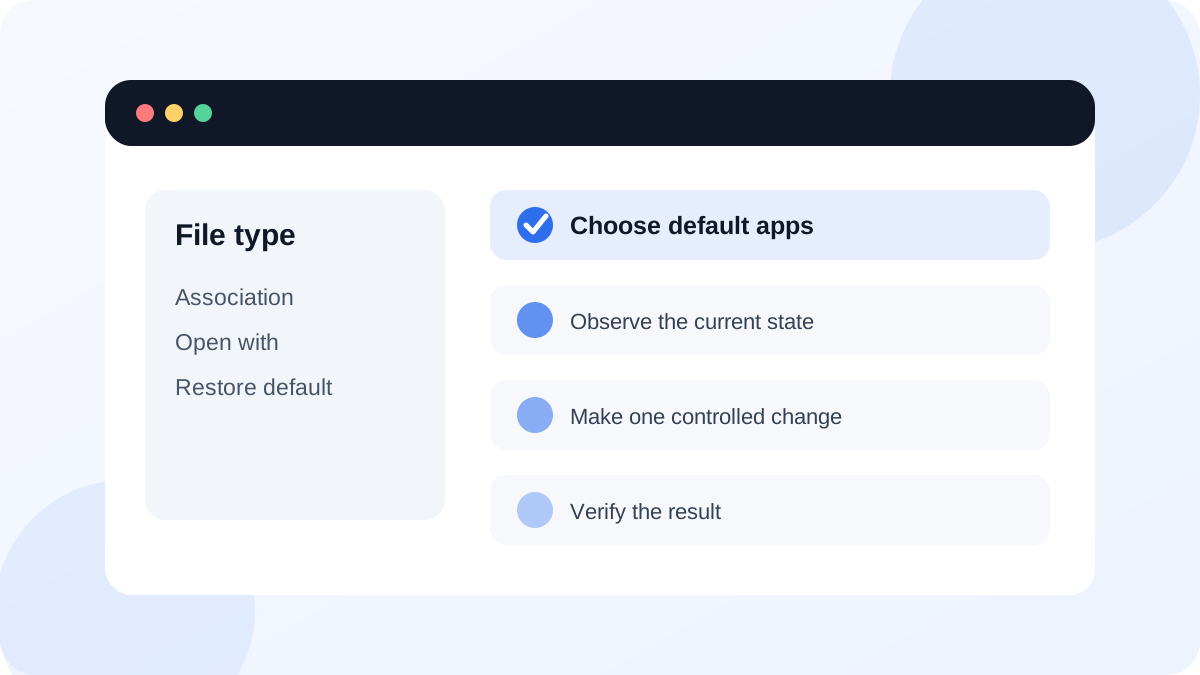
Set the main defaults for an application
Open Settings > Apps > Default apps. Search for the application you want, such as a browser or media player. Windows displays the file and link types it can handle. Review the list instead of assuming one button controls every format.
For a web browser, common HTTP and HTTPS link types matter in addition to .html files. For a media app, audio and video formats may be assigned separately. Keep specialized formats with the application that fully supports them rather than forcing one app to handle everything.
- 1
Press Windows + I and open Apps > Default apps.
- 2
Search for a trusted app installed on the PC.
- 3
Review its supported file and link associations.
- 4
Choose one harmless practice extension and select the preferred compatible app.
- 5
Open a sample file and confirm it renders correctly.
- 6
Return to Default apps and record how to restore the previous association.
Use Open with for a one-time exception
Right-click a file and choose Open with when you want to test another application without permanently changing all files of that type. Some Windows versions show a checkbox or prompt to make the choice the default; leave it clear for a one-time test.
If an app does not appear, choose another app and browse only to a known executable from a trusted installation. An application listed as compatible may still lose advanced formatting, metadata or editing features. Test on a copy when the file is important.
- The sample extension remains visible and unchanged.
- The selected app opens the file without an error.
- A one-time Open with test did not unexpectedly replace the default.
- The previous default can be restored from Settings.
Fix an association without damaging files
Microsoft's file-extension guidance can help identify the expected format before selecting an app. If the extension and content do not match, changing defaults will not repair the file.
When a file stops opening after an app update, first test another known file of the same type. Repair or reinstall the application if the association points to a missing executable. Avoid downloading an unknown viewer solely because a website claims it opens an unfamiliar extension; identify the software that created the file and use its official documentation.
Compare two applications on one safe file type
Change and restore an association while confirming the file content remains intact.
- 1
Choose a copied image, text or PDF file for practice.
- 2
Record its extension and current default app.
- 3
Use Open with to test a second compatible app once.
- 4
Set that second app as the default through Settings and reopen the file.
- 5
Restore the original default and verify both applications remain installed.
Common mistakes to avoid
- Renaming the extension to force another application to open the file.
- Assigning one app to every media or document type without checking compatibility.
- Selecting an unknown executable from an untrusted folder.
- Assuming a failed file is only an association problem without testing another file.
Key takeaways
- Default apps control associations, not file formats.
- Use Settings for persistent changes and Open with for one-time choices.
- Verify the result on a safe copy and keep a clear restoration path.
Frequently asked questions
Why does Windows ask me to choose an app again?
The previous app may have been removed, the association may have reset after an update, or the file type may not have a registered handler. Choose a trusted compatible app in Default apps.
Can one extension open in different apps for different folders?
Windows defaults normally apply system-wide for that user. Use Open with for individual files when you need an exception.
Sources and further reading
- Change default apps in WindowsMicrosoft Support
- Common file name extensions in WindowsMicrosoft Support
Ready to continue?
Mark the lesson complete so your Learning Path progress stays current on this device.