What you will learn
- Distinguish resolution, aspect ratio, frame rate, codec and bitrate.
- Match export settings to source footage and destination.
- Create a small test export before a long render.
- Verify playback, audio synchronization and file metadata.
What you need
- A short sample video clip.
- A video editor capable of exporting MP4.
Each setting controls a different trade-off
YouTube recommends common upload settings including MP4, H.264 video, progressive scan and uploading at the same frame rate used during recording.
YouTube supports several video file formats and directs users to encoding guidance for advanced settings.
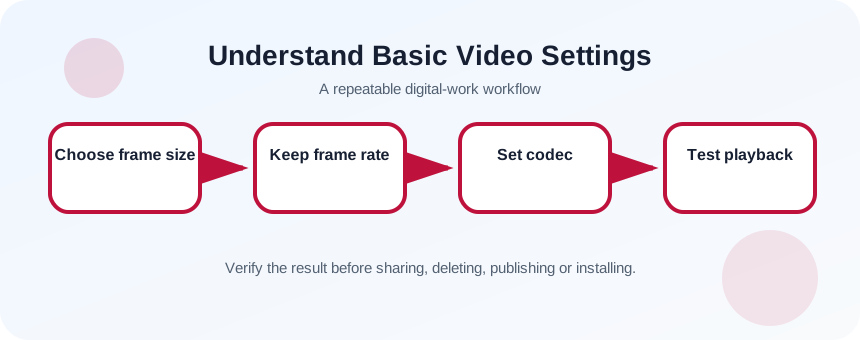
1080p describes resolution, 16:9 describes shape and 30 fps describes temporal sampling. MP4 is a container; H.264 is a codec commonly stored inside it. Bitrate is not resolution, although higher resolution generally needs more data to preserve quality.
Inspect the source and destination
Record source resolution, frame rate, orientation and audio sample rate. Decide whether the output is horizontal, vertical or square and where it will be published. Avoid converting 30 fps footage to 60 fps unless the workflow has a specific reason.
- 1
Open clip properties.
- 2
Record resolution and frame rate.
- 3
Identify orientation and aspect ratio.
- 4
Choose the delivery platform.
- 5
Check maximum file size or duration.
- 6
Mark a 15-second test range.
Create a compatible test export
For a general online test, choose MP4 with H.264 video and AAC audio where available. Match frame rate to the source and use progressive scan. Choose 1080p when the source and destination support it; exporting low-resolution footage at 4K does not restore detail.
- 1
Open export settings.
- 2
Choose MP4 container.
- 3
Choose H.264 video codec.
- 4
Match source frame rate.
- 5
Select target resolution and aspect ratio.
- 6
Use AAC audio.
- 7
Export the short test range.
Inspect motion, audio and delivery behavior
Play the exported file from beginning to end in a separate player. Check fast motion, fine detail, transitions, text and audio synchronization. Upload the test privately when platform processing is part of the risk, because local playback cannot prove the service will interpret every setting as intended.
Higher bitrate increases file size and can preserve detail, but extreme bitrate does not improve a poor source. Variable bitrate can allocate more data to complex scenes. Keep the original project and source footage after delivery according to retention needs.
- 1
Check duration and file size.
- 2
Play at normal speed.
- 3
Inspect motion and text.
- 4
Listen with headphones.
- 5
Check audio sync near the end.
- 6
Upload a private test if appropriate.
Confirm the export against the brief
The file should have the intended frame shape, duration, resolution and audio channels. Confirm no letterboxing or unintended crop, and ensure captions or burned-in text remain inside safe areas. Record the export preset so the final render can be reproduced.
- Frame rate matches the source unless conversion was intentional.
- Audio remains synchronized through the full test.
- The destination accepts and displays the file correctly.
Export and compare two short videos
Create one correct export and one deliberately altered setting to observe the effect.
- 1
Inspect a source clip.
- 2
Export 15 seconds with matched settings.
- 3
Export a second copy with lower bitrate or different resolution.
- 4
Compare motion and detail.
- 5
Upload privately if allowed.
- 6
Document the chosen preset.
Common mistakes to avoid
- Confusing MP4 container with H.264 codec.
- Changing frame rate without purpose.
- Upscaling and expecting new detail.
- Rendering the entire project before testing.
Key takeaways
- Resolution, frame rate, codec and bitrate are separate settings.
- Match source characteristics unless the destination requires change.
- Short test exports prevent expensive failures.
Frequently asked questions
Is 60 fps always better than 30 fps?
No. It can be useful for high-motion footage recorded at 60 fps, but conversion from 30 fps does not create authentic intermediate motion.
Why is my exported video huge?
Resolution, duration, codec and bitrate all affect size. Check whether the bitrate or resolution is higher than the destination needs.
Sources and further reading
- YouTube recommended upload encoding settingsYouTube Help
- Supported YouTube file formatsYouTube Help
Ready to continue?
Mark the lesson complete so your Learning Path progress stays current on this device.