What you will learn
- Identify a trusted software source and publisher.
- Inspect installer type, signature and security reputation.
- Review installation options and bundled offers.
- Verify version, update path and uninstall method after installation.
What you need
- A Windows PC with permission to install a harmless test application.
- A restore or backup plan appropriate to the application risk.
Trust the distribution chain, not only the product name
Microsoft advises installing programs only from trusted publishers and retail websites and identifies Microsoft Store as a standard source.
Windows App and Browser Control includes reputation-based protection and Microsoft Defender SmartScreen for unsafe apps, files, websites and downloads.
Microsoft recommends downloading apps from trusted sources and warns that potentially unwanted software can slow devices, show unexpected ads or install additional software.
An official installer can still be inappropriate for a managed device, incompatible with your Windows version or unnecessary for the task. Check both authenticity and authorization.
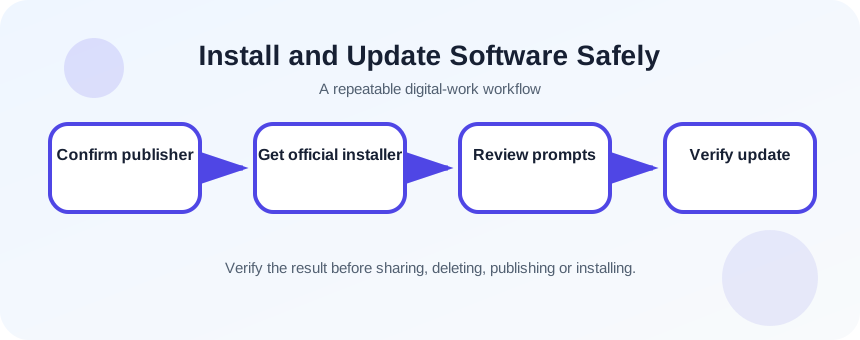
Research before downloading
Start from the vendor’s known domain or Microsoft Store, not a sponsored search result. Record product name, publisher, supported Windows versions, license, expected installer format and whether administrator access is required. Back up important work before installing drivers, security tools or system utilities.
- 1
Define the task the software must solve.
- 2
Check whether an approved tool already exists.
- 3
Navigate to the official vendor or Store.
- 4
Verify system requirements and license.
- 5
Review release notes and support status.
- 6
Create a restore or rollback plan when risk is elevated.
Download and install with prompts visible
Save the installer to a known folder and inspect its filename, extension and Properties. Confirm the digital publisher when available. Keep Windows security protections enabled. During setup, read each screen, choose custom options if the default includes extra software and reject unrelated browser changes or subscriptions.
- 1
Download once from the official source.
- 2
Use Show in folder.
- 3
Check extension and file properties.
- 4
Scan with Windows Security.
- 5
Launch and verify publisher prompt.
- 6
Read license and installation options.
- 7
Decline unrelated bundled offers.
Verify the installed application and update path
Launch the application from the Start menu, check its version and confirm the expected publisher. Review startup behavior, browser extensions and permissions added during installation. Use the application’s official update mechanism or Store updates rather than downloading patches from third-party sites.
Know how to uninstall the software and where it stores user data. Some uninstallers remove settings or local projects; back up application data before removal. For business devices, record license ownership and responsible maintainer.
- 1
Open the installed app.
- 2
Check About or version information.
- 3
Review startup apps.
- 4
Inspect added extensions or services.
- 5
Test the official update mechanism.
- 6
Locate uninstall and data-backup instructions.
Confirm benefit, security and reversibility
The application should solve the defined task without unexpected ads, extensions, startup entries or account changes. Monitor system behavior after installation and remove software that is unused or no longer supported. Keep a record of installer source and version for reproducibility.
- The publisher and download source are verified.
- No unrelated offer or permission was accepted.
- Version, update and uninstall paths are documented.
Install a harmless approved utility
Follow a full verification and documentation workflow.
- 1
Choose a low-risk approved tool.
- 2
Find the official source.
- 3
Record publisher and requirements.
- 4
Download and scan the installer.
- 5
Read every setup screen.
- 6
Verify version, update path and uninstall location.
Common mistakes to avoid
- Clicking a sponsored download result without checking domain.
- Disabling protection to run an unknown installer.
- Accepting Express setup with bundled offers.
- Forgetting how the app updates or uninstalls.
Key takeaways
- Software safety begins before download.
- Publisher, source and prompts all require review.
- A safe installation includes update and rollback knowledge.
Frequently asked questions
Is Microsoft Store always the best source?
It is often a controlled source, but availability and organizational policy vary. For non-Store software, use the verified vendor site and security checks.
What should I do if Windows says the app is unrecognized?
Stop and verify publisher, source, reputation and necessity. Do not bypass the warning merely because the installer was expected.
Sources and further reading
- How to install programs from online sources on WindowsMicrosoft Support
- App and browser control in the Windows Security appMicrosoft Support
- Protect your PC from unwanted softwareMicrosoft Support
Ready to continue?
Mark the lesson complete so your Learning Path progress stays current on this device.