What you will learn
- Prepare an editable document for PDF output.
- Choose export settings appropriate to quality and file size.
- Verify links, headings, page breaks and images in the PDF.
- Release a final PDF without losing the editable source.
What you need
- A structured Word document with headings and at least one link.
- A PDF reader independent of the authoring application.
PDF preserves appearance, but export choices affect usability
Microsoft Office applications can save or convert documents to PDF and expose options such as standard or minimum size and bookmarks from headings.
Using real heading styles creates navigable structure in the source document.
A PDF generated with the application’s Export or Save As function can preserve more structure than a generic print workflow. The final file still needs inspection because page reflow, unsupported fonts or image compression can change the result.
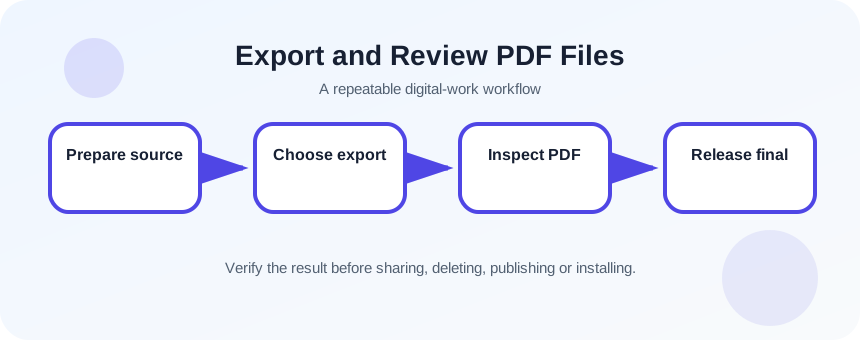
Finalize the editable source first
Accept or reject tracked changes, resolve comments, update fields and the table of contents, and check document properties. Confirm page size, margins, headers and footers. Save a versioned editable source before creating the PDF.
- 1
Save the editable source with a clear version.
- 2
Resolve comments and tracked changes.
- 3
Update dates, fields and table of contents.
- 4
Check heading hierarchy.
- 5
Inspect page breaks and image placement.
- 6
Remove hidden or confidential content.
Export with deliberate settings
Use the application’s PDF export. Choose standard quality for print or detailed viewing, and minimum size only when bandwidth matters and image quality remains acceptable. Include bookmarks from headings when supported. Do not overwrite the editable source with the PDF.
- 1
Open File > Save As or Export.
- 2
Choose PDF.
- 3
Select quality based on use.
- 4
Open Options.
- 5
Include headings as bookmarks when available.
- 6
Choose the intended page range.
- 7
Save to a release folder with a final filename.
Inspect the PDF as a recipient
Close the source application and open the PDF in a separate reader. Test page count, links, bookmarks, search, copyable text, image clarity and any forms. Zoom in on diagrams and check pages near manual breaks. If the file will be printed, review print preview at the intended paper size.
For accessibility, check reading order, meaningful link text, document title and image alternatives using the tools available in your workflow. A visually correct PDF can still be difficult to navigate with assistive technology.
- 1
Open the PDF in another reader.
- 2
Compare page count with expectation.
- 3
Test every important link.
- 4
Use bookmarks or outline navigation.
- 5
Search for a known phrase.
- 6
Inspect images at 200 percent zoom.
Control final status and distribution
Store the approved PDF separately from drafts and identify the source version from which it was produced. If the PDF is signed or approved, any later edit requires a new version and review. Send the PDF when recipients should not casually alter the layout; send the source only when collaboration requires it.
- The PDF opens independently and all pages render.
- Links, bookmarks and searchable text work.
- The approved PDF maps to a retained editable source version.
Export and audit a three-page PDF
Create a PDF with headings, a link and an image, then review it as a recipient.
- 1
Prepare the structured source.
- 2
Resolve comments.
- 3
Export with standard quality and heading bookmarks.
- 4
Open in a separate reader.
- 5
Test navigation, search and links.
- 6
Record and fix one export issue.
Common mistakes to avoid
- Using screenshots instead of searchable text.
- Exporting with unresolved comments or changes.
- Assuming the PDF is correct because the source is correct.
- Overwriting or losing the editable source.
Key takeaways
- PDF export is a publishing workflow.
- Structured source content improves the final PDF.
- Independent review is required before release.
Frequently asked questions
When should I use minimum-size PDF?
Use it when file size is a real constraint and visual review confirms acceptable quality. Avoid it for detailed diagrams or print-ready files.
Why are my PDF bookmarks missing?
The export may not have included heading bookmarks, or the source used manual formatting instead of heading styles.
Sources and further reading
- Save or convert to PDF or XPS in Office Desktop appsMicrosoft Support
- Add a heading in a Word documentMicrosoft Support
Ready to continue?
Mark the lesson complete so your Learning Path progress stays current on this device.