What you will learn
- Choose comments or tracked edits for the right purpose.
- Make review suggestions that are specific and actionable.
- Accept, reject and resolve feedback systematically.
- Verify that the final document contains no unintended markup.
What you need
- A Word document copy suitable for review.
- A second reviewer or a second account for testing.
Discussion and document change are separate layers
Word Track Changes records edits by authors and provides controls to accept or reject changes.
Word comments support feedback conversations attached to document content.
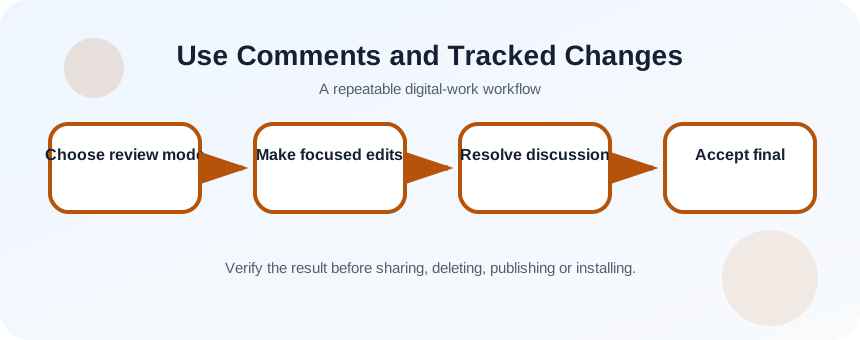
Use a comment when you are asking a question, explaining a concern or requesting a decision. Use tracked changes when proposing exact wording or structural edits. A comment such as “unclear” is not actionable; explain what information or decision is missing.
Set review scope and ownership
Create a review copy or confirm version history. State whether reviewers may rewrite text, comment only or focus on a specific section. Choose one person to integrate final decisions. Turn on Track Changes before editing and confirm the correct author identity appears.
- 1
Save or checkpoint the original.
- 2
Define review goals.
- 3
Assign the document owner.
- 4
Turn on Track Changes.
- 5
Choose markup display.
- 6
Confirm reviewer name and color.
Review in focused passes
Complete one pass for structure, another for facts and a final pass for language. Add comments that identify location, issue and requested outcome. Avoid rewriting large sections without explanation when the author needs to understand the change.
- 1
Read the section before editing.
- 2
Add a comment for unresolved questions.
- 3
Use tracked changes for exact revisions.
- 4
Mention a responsible person when appropriate.
- 5
Reply to clarify decisions.
- 6
Resolve comments only when addressed.
- 7
Save and notify the document owner.
Integrate and finalize deliberately
Review changes individually when meaning, numbers or obligations are affected. Accepting all changes may incorporate conflicting suggestions or accidental deletions. Use the Reviewing Pane to find remaining changes and comments.
After decisions, save an approved source version, accept or reject all remaining changes, delete or resolve comments according to policy and export the final deliverable. Retain the review record when accountability or regulated approval requires it.
- 1
Open the Reviewing Pane.
- 2
Review each substantive change.
- 3
Accept or reject with context.
- 4
Resolve comments after the issue is fixed.
- 5
Search for remaining markup.
- 6
Save approved and archival versions appropriately.
Open the final file in a clean view
Close and reopen the document, switch to All Markup and verify there are no unreviewed edits. Check comments, headers, footers and text boxes. Then open the exported PDF or final file independently to confirm that hidden review content was not exposed.
- Every tracked change has a deliberate decision.
- No unresolved comment remains in the release copy.
- The retained review record and clean final have clear filenames.
Run a two-person review cycle
Use comments and tracked changes on a one-page document.
- 1
Create a review copy.
- 2
Turn on Track Changes.
- 3
Make three wording edits.
- 4
Add two actionable comments.
- 5
Reply and resolve one comment.
- 6
Accept or reject every change and verify a clean final.
Common mistakes to avoid
- Using comments to rewrite whole paragraphs.
- Hiding markup instead of accepting changes.
- Resolving comments before the issue is fixed.
- Sending the review copy as the final deliverable.
Key takeaways
- Comments discuss; tracked changes propose edits.
- Finalization requires explicit accept or reject decisions.
- A clean final and review record serve different purposes.
Frequently asked questions
Can several reviewers use Track Changes at once?
Yes, but coordinated cloud editing and clear author identities reduce conflicts. Assign an owner to integrate final decisions.
What does Resolve do to a comment?
It marks the discussion as completed and may hide it from the main view. Follow your retention policy before deleting comment history.
Sources and further reading
- Track changes in WordMicrosoft Support
- Give and receive feedback in WordMicrosoft Support
Ready to continue?
Mark the lesson complete so your Learning Path progress stays current on this device.