What you will learn
- Explain the different roles of DISM and SFC.
- Run the supported online repair sequence safely.
- Interpret and preserve the final command results.
- Escalate recurring or unrepairable corruption to logs, storage checks or supported recovery.
What you need
- A verified backup of important files.
- Administrator access and reliable power.
- A recorded Windows symptom and enough free space for servicing.
Confirm that system-file repair matches the symptom
Use DISM and SFC when Windows components, protected files or servicing operations are plausible causes. Examples include a built-in Windows feature that no longer opens, repeated component errors after malware cleanup, or Windows Update failures tied to servicing corruption. Do not run them simply because a third-party application is slow.
Before repair, record Windows edition, version, build, free space, update status and the exact failing action. Check drive health first when files disappear, read errors increase or Windows freezes during disk access. Repairing system files on unstable storage can hide the real risk.
Understand why DISM normally comes before SFC
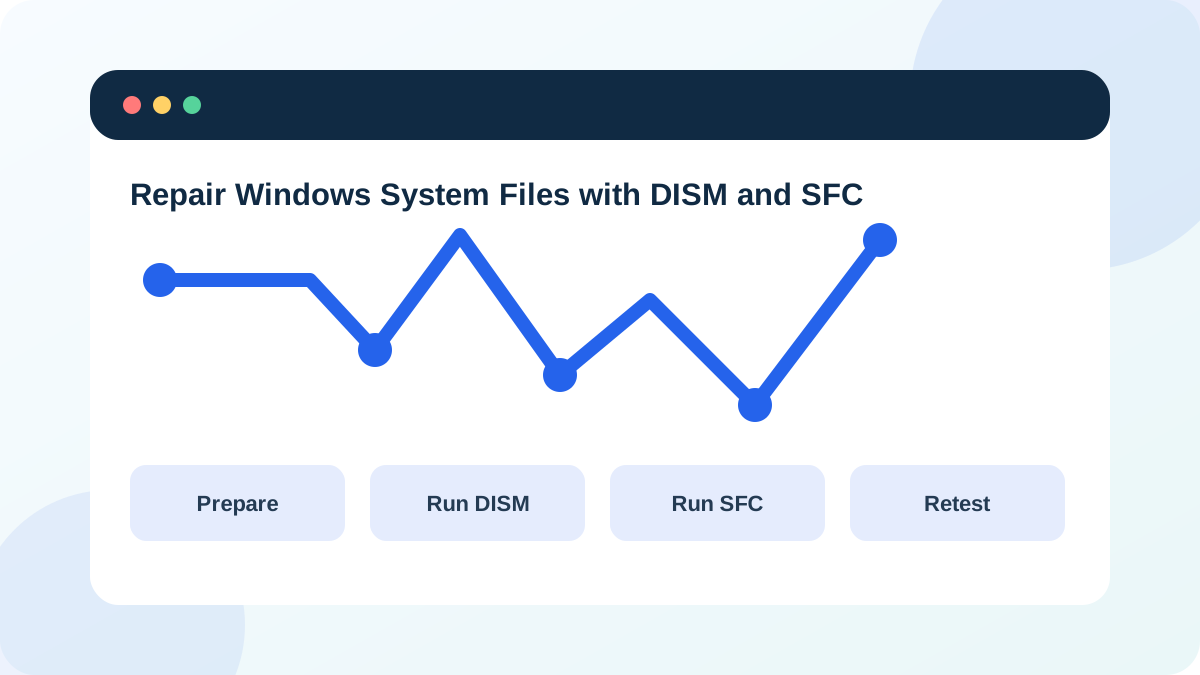
Microsoft's supported guidance runs DISM.exe /Online /Cleanup-Image /RestoreHealth before sfc /scannow. DISM repairs the Windows image and component store that SFC can use as a source for protected files.
Microsoft Learn documents DISM image-health options and alternate repair sources. Alternate source media must match the installed Windows version and servicing context; an arbitrary ISO or another computer's files are not automatically valid.
- 1
Back up important files and connect the PC to reliable power.
- 2
Confirm the Windows volume has reasonable free space and no active storage warning.
- 3
Open Windows Terminal or Command Prompt as administrator.
- 4
Run DISM.exe /Online /Cleanup-Image /RestoreHealth.
- 5
Wait for the final DISM result even if the percentage pauses.
- 6
Start sfc /scannow, record the completion message, and preserve the final result for comparison.
Record exact results and restart only when appropriate
Copy the final message from both commands with the timestamp. DISM can complete successfully, report that source files could not be found, or return a code requiring targeted servicing analysis. SFC can report no integrity violations, successful repair, or files it could not repair. The wording determines the next step.
When repairs are made, restart Windows and repeat the original action. A successful command without a successful symptom retest is incomplete evidence. If no violations are found, return to application, driver, account, network or hardware hypotheses rather than rerunning the same commands.
- 1
Copy the complete final DISM message and any error code.
- 2
Copy the complete final SFC message.
- 3
Record the command start and finish times.
- 4
Restart Windows when a repair was made or official guidance requires it.
- 5
Repeat the exact action that originally failed.
- 6
Record whether the symptom is resolved, changed or unchanged.
Use logs when the final message requires deeper analysis
SFC details are written to the CBS log, and DISM writes its own servicing log. These logs contain many routine lines; do not treat every warning as the root cause. Extract entries tied to the command time and relevant repair status. Remove unnecessary personal paths before sharing.
If DISM cannot obtain source files, check network access, Windows Update health and version-matched recovery options. If SFC repeatedly repairs the same files, investigate storage, memory, security software and update failures. Recurring corruption after a clean repair is evidence of an underlying cause.
- The original symptom justified a system-file check.
- DISM completed before SFC.
- Exact final messages and timestamps were preserved.
- The original symptom was retested after repair.
- Repeated corruption triggers root-cause investigation rather than endless reruns.
Escalate to supported recovery when online repair is insufficient
When Windows cannot boot, online servicing commands may not apply. Recovery Environment, System Restore, repair reinstall or full reinstall have different prerequisites and data effects. Choose them using a verified backup and the least destructive option that matches the failure.
Do not copy long DISM command lists from forums, remove component-store files manually or use cleanup switches you do not understand. Servicing mistakes can make rollback and future updates harder.
Run a documented system-file check
Use the supported command order and create a result record.
- 1
Record Windows build, free space and the original symptom.
- 2
Run DISM RestoreHealth as administrator.
- 3
Save the final DISM message.
- 4
Run SFC /scannow and save its final message.
- 5
Restart if repairs were made.
- 6
Retest the original feature and write the next step.
Common mistakes to avoid
- Running SFC repeatedly without interpreting the first result.
- Using an arbitrary ISO as a DISM repair source.
- Treating successful commands as proof the user problem is solved.
- Ignoring storage errors when corruption returns.
Key takeaways
- DISM repairs the component source; SFC verifies protected system files.
- The final messages and symptom retest determine the outcome.
- Recurring corruption requires root-cause or recovery work.
Frequently asked questions
Should I run SFC before DISM?
Microsoft's current supported sequence generally runs DISM RestoreHealth first and SFC second so the component source is healthy before protected files are repaired.
Why does DISM appear stuck?
Progress can pause while servicing work continues. Check activity and allow it to finish unless Windows reports a clear error or the system becomes unsafe.
Sources and further reading
- Use the System File Checker tool to repair missing or corrupted system filesMicrosoft Support
- Repair a Windows imageMicrosoft Learn
- DISM operating system package servicing command-line optionsMicrosoft Learn
Ready to continue?
Mark the lesson complete so your Learning Path progress stays current on this device.