What you will learn
- Compare repair reinstall, Reset this PC and clean installation.
- Create a complete backup and rebuild inventory before destructive recovery.
- Choose cloud download, local reinstall or installation media appropriately.
- Validate activation, updates, drivers, applications and restored data after recovery.
What you need
- A verified backup on a destination separate from the Windows device.
- BitLocker recovery information, Microsoft or local account access, and application credentials.
- Reliable power, internet or verified installation media as required.
Understand what each recovery level changes
Microsoft's recovery guidance places Reset and reinstall among broader options when targeted repairs do not solve the problem. Reset this PC reinstalls Windows and offers Keep my files or Remove everything, while installed applications and settings are affected.
Microsoft also documents reinstalling Windows with installation media. An in-place reinstall launched from a working Windows session can preserve selected files and applications when the supported option is available; booting from media for a clean installation is more destructive.
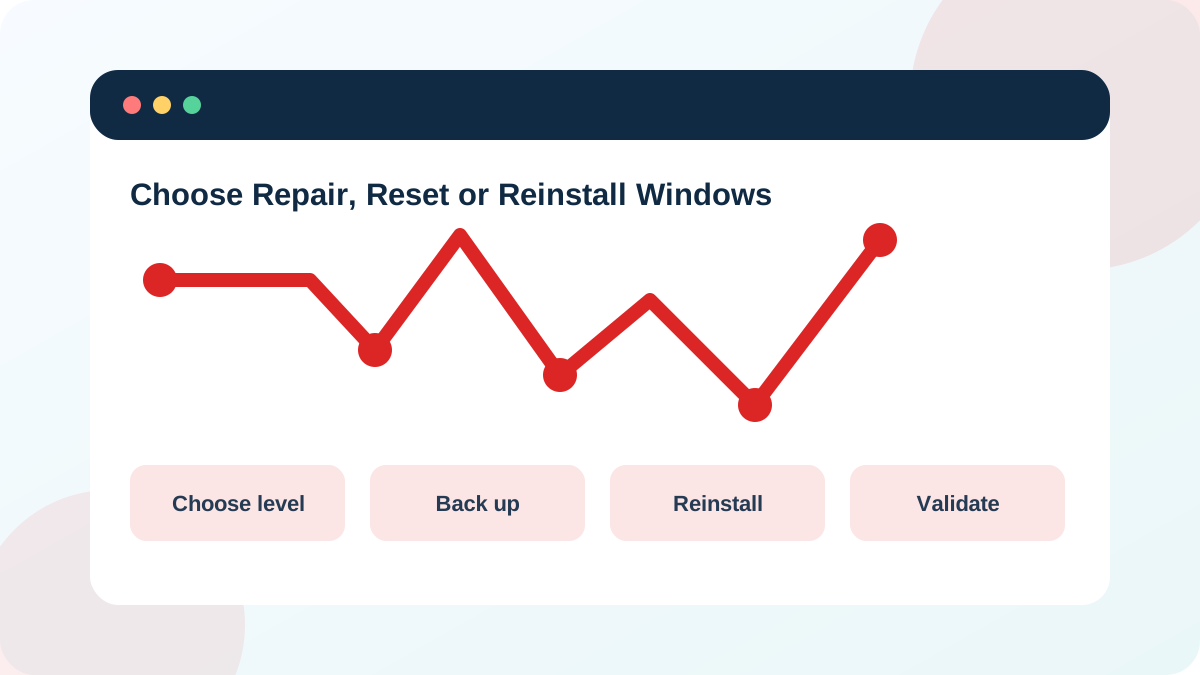
- 1
Write whether Windows starts normally, in Safe Mode, only in WinRE or not at all.
- 2
Confirm whether data is backed up and whether the storage device is healthy enough for recovery.
- 3
List targeted repairs already attempted and their results.
- 4
Choose repair reinstall when Windows runs and the current installation can be serviced.
- 5
Choose Reset when a supported fresh Windows state is needed and app reinstall is acceptable.
- 6
Choose clean installation only with a complete backup and rebuild plan.
Build a recovery inventory before pressing Reset
Back up documents, desktop files, browser profiles, exported bookmarks, password-manager recovery data, email archives, creative-project assets, virtual machines and application-specific data. Verify by opening sample files from the separate destination. Sync status is not a restore test.
Record Windows edition and activation status, device model, BitLocker recovery key, account credentials, network access, application list, license or subscription information, printer and peripheral setup, VPN configuration and manufacturer drivers. On a managed device, stop and involve the organization.
- 1
Copy important files to a separate destination and open sample files there.
- 2
Export browser, password-manager and application-specific recovery data.
- 3
Record Windows edition, activation and device model.
- 4
Secure the BitLocker recovery key and account credentials.
- 5
Create an application, license, peripheral and network inventory.
- 6
Download only official installation media and critical manufacturer network drivers.
Use Reset this PC with explicit choices
Microsoft documents Keep my files and Remove everything options, plus cloud download and local reinstall. Keep my files preserves personal files but removes applications and resets settings; Remove everything is intended for a broader wipe, including scenarios where the device changes ownership.
Cloud download obtains fresh Windows files and needs stable internet and data allowance. Local reinstall uses files already on the PC and may be faster, but it can be less suitable if local recovery files are damaged. Read every confirmation screen and record the selected options. Do not interrupt the device while Windows is reinstalling.
- 1
Open Settings > System > Recovery or use WinRE when Windows cannot start.
- 2
Select Reset this PC and read the displayed effects.
- 3
Choose Keep my files or Remove everything based on the documented goal.
- 4
Choose cloud download or local reinstall after checking network and recovery-file condition.
- 5
Review additional settings, target drives and data-cleaning options carefully.
- 6
Keep reliable power connected until setup completes.
Use installation media only from a trusted source
Create media with Microsoft's supported tool on a known-good computer. Verify architecture and edition. For an in-place reinstall, start setup from within Windows and review what can be kept. For a clean install, booting from media and deleting or formatting partitions can permanently remove data and recovery structures.
Do not delete partitions unless the correct physical drive, backup and recovery design are certain. Disconnect non-target external drives when practical. On systems with vendor recovery needs, RAID or special storage drivers, use manufacturer instructions.
- The recovery method and preservation level are documented.
- The backup has been restored or opened successfully on another location.
- The correct Windows edition, target device and storage drive are confirmed.
- Power, network, keys and installation media are available.
- A post-recovery validation checklist exists before the operation begins.
Validate the rebuilt system before restoring everything
After Windows starts, confirm activation, Windows Update, Device Manager, Windows Security, network access, storage health and time settings. Install manufacturer-supported drivers where needed. Restore a small set of files and test them before copying the full archive.
Install applications in priority order and test the original symptom before restoring every customization. If the symptom returns immediately on a clean installation, hardware, firmware, external devices or restored data become stronger hypotheses.
- 1
Confirm Windows edition and activation.
- 2
Install Windows updates and restart until the supported update cycle is complete.
- 3
Check Device Manager and manufacturer support for required drivers.
- 4
Verify Windows Security and network access.
- 5
Restore and open a small sample of files.
- 6
Test the original symptom before reinstalling all applications.
Create a recovery runbook
Prepare a decision and rebuild checklist without actually resetting the PC.
- 1
Choose repair reinstall, Reset or clean install for a sample scenario.
- 2
List what the selected method keeps and removes.
- 3
Create the complete backup and credential inventory.
- 4
Record media, power, network and driver prerequisites.
- 5
Write the post-install validation sequence.
- 6
Define the point at which professional service is safer.
Common mistakes to avoid
- Assuming Keep my files preserves installed applications and settings.
- Resetting a device with unverified cloud-only or unsynced files.
- Deleting partitions without confirming the physical target drive.
- Restoring every app and customization before testing the original symptom.
Key takeaways
- Repair, Reset and clean install preserve different amounts of the current system.
- A verified backup and rebuild inventory are mandatory before destructive recovery.
- Validate Windows and the original symptom before fully restoring the old environment.
Frequently asked questions
Does Reset this PC keep my applications?
The Keep my files option preserves personal files but removes installed applications and resets settings. Review the exact confirmation screen for your Windows version.
Is cloud download better than local reinstall?
It provides fresh Windows files but requires stable internet. Local reinstall can be faster but relies on local recovery files. Choose based on file integrity and connectivity.
Sources and further reading
- Recovery options in WindowsMicrosoft Support
- Reinstall Windows with the installation mediaMicrosoft Support
- Reset your PCMicrosoft Support
Ready to continue?
Mark the lesson complete so your Learning Path progress stays current on this device.