What you will learn
- Explain the different roles of DISM and SFC.
- Run DISM RestoreHealth and sfc /scannow from an elevated terminal in the supported order.
- Interpret common completion messages and locate relevant logs.
- Recognize when repeated commands should stop and deeper recovery should begin.
What you need
- A Windows 10 or Windows 11 PC that can start normally or access an appropriate recovery environment.
- Administrator access.
- Important files backed up and reliable power/network access.
Use the tools for system-file evidence, not every symptom
Microsoft directs users to run DISM.exe /Online /Cleanup-image /Restorehealth before sfc /scannow in its System File Checker guidance. DISM repairs the Windows image used to service the current installation; SFC then validates protected system files against a healthy source.
Appropriate triggers include Windows components failing, official troubleshooting identifying corruption, or SFC reporting it cannot repair files. A slow browser, low storage or a single third-party application crash does not automatically justify system-file repair. Diagnose the scope first.
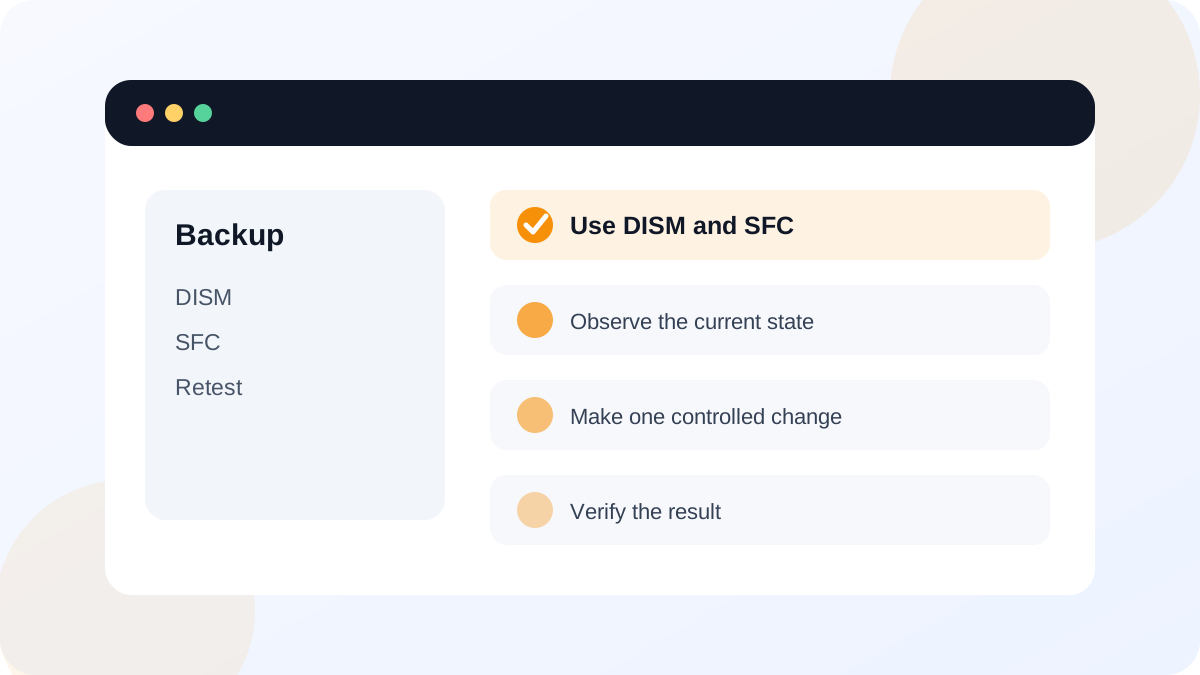
Run DISM and SFC from an elevated terminal
Save work, connect the PC to power and confirm internet access because DISM can use Windows Update as a repair source. Open Terminal or Command Prompt as administrator. Type each command exactly. The DISM percentage can appear stuck for several minutes; watch disk and network activity and allow it to finish unless the system clearly fails.
After DISM reports completion, run SFC. Do not close the window before verification reaches 100 percent. Copy the final message into your notes. Restart when a repair was made, then retest the original Windows component or symptom.
- 1
Back up important files and record the original symptom.
- 2
Open Windows Terminal or Command Prompt as administrator.
- 3
Run DISM.exe /Online /Cleanup-Image /RestoreHealth and wait for the final result.
- 4
Run sfc /scannow and wait until verification reaches 100 percent.
- 5
Copy both final messages and note the time.
- 6
Restart if corruption was repaired, then repeat the original action that failed.
Interpret the result instead of rerunning blindly
SFC can report that it found no integrity violations, repaired corrupt files, or found files it could not repair. No violations means protected system files were not the proven cause; return to application, driver, account, storage or hardware evidence. A successful repair still needs a symptom retest. An unrepairable result requires the CBS log and possibly an offline repair or in-place recovery plan.
Microsoft Learn documents DISM image-repair options, including ScanHealth, CheckHealth, RestoreHealth and alternate source parameters. Those advanced source choices must match the Windows version and edition; an arbitrary ISO or another PC's files are not automatically valid repair sources.
- Commands ran in an elevated terminal and were typed exactly.
- DISM completed before SFC.
- Final messages and timestamp were recorded.
- The original symptom was retested after restart.
- Repeated failure leads to log review or a supported recovery plan rather than endless reruns.
Preserve logs and escalate with context
SFC details are written to the CBS log under the Windows Logs folder. Extract only relevant SFC entries when sharing support information and remove device or path details that are unnecessary. DISM has its own log. Log size and technical language make them evidence for targeted analysis, not proof that every warning line caused the symptom.
If DISM cannot find source files, Windows cannot boot reliably, disk-health tests fail or corruption returns after repair, stop treating the issue as a simple command problem. Check update history, storage health, memory stability and recovery options. An in-place repair or reinstall should follow a verified backup and an explicit plan for applications and encryption keys.
Run a documented system-file health check
Use the official command order on a non-critical PC and create a repair record even when no corruption is found.
- 1
Record Windows edition, build and original symptom.
- 2
Run DISM RestoreHealth and save the final message.
- 3
Run SFC /scannow and save its final message.
- 4
Restart if repairs were reported.
- 5
Retest the symptom and write the next evidence-based action.
Common mistakes to avoid
- Running SFC repeatedly without first addressing a damaged component store.
- Closing DISM because the percentage pauses temporarily.
- Assuming a successful command fixed a symptom without retesting it.
- Using an unmatched repair source or destructive DISM switch from an unofficial guide.
Key takeaways
- DISM and SFC have different repair roles and a supported order.
- The final tool message and original symptom retest are both required.
- Persistent corruption calls for logs, health checks and a planned recovery path—not repeated blind commands.
Frequently asked questions
How long should DISM take?
Time varies with hardware, image condition and repair-source access. A percentage can pause. Keep power and connectivity stable and wait for the final message unless Windows clearly becomes unresponsive for an abnormal period.
Does sfc /scannow delete personal files?
It targets protected Windows system files, not personal documents. Still keep a backup because underlying disk or system problems can create wider risk during troubleshooting.
Sources and further reading
- Use the System File Checker tool to repair missing or corrupted system filesMicrosoft Support
- Repair a Windows imageMicrosoft Learn
Ready to continue?
Mark the lesson complete so your Learning Path progress stays current on this device.