What you will learn
- Identify the software and firmware that need security maintenance.
- Configure automatic updates without losing control of restarts.
- Verify that an update actually installed.
- Recognize unsupported software as a replacement problem, not a settings problem.
What you need
- Administrator access where updates require it.
- A current backup of important files before major upgrades.
Understand what a security update changes
CISA lists software updating as a core online-safety action because vendors use updates to fix known security weaknesses.
Windows Security and Windows Update rely on current security intelligence and system updates to detect and block newer threats.
An update may contain security fixes, reliability changes and feature changes together. “Latest version” is not the same as “supported version”: a device can report no available updates because its product lifecycle has ended.
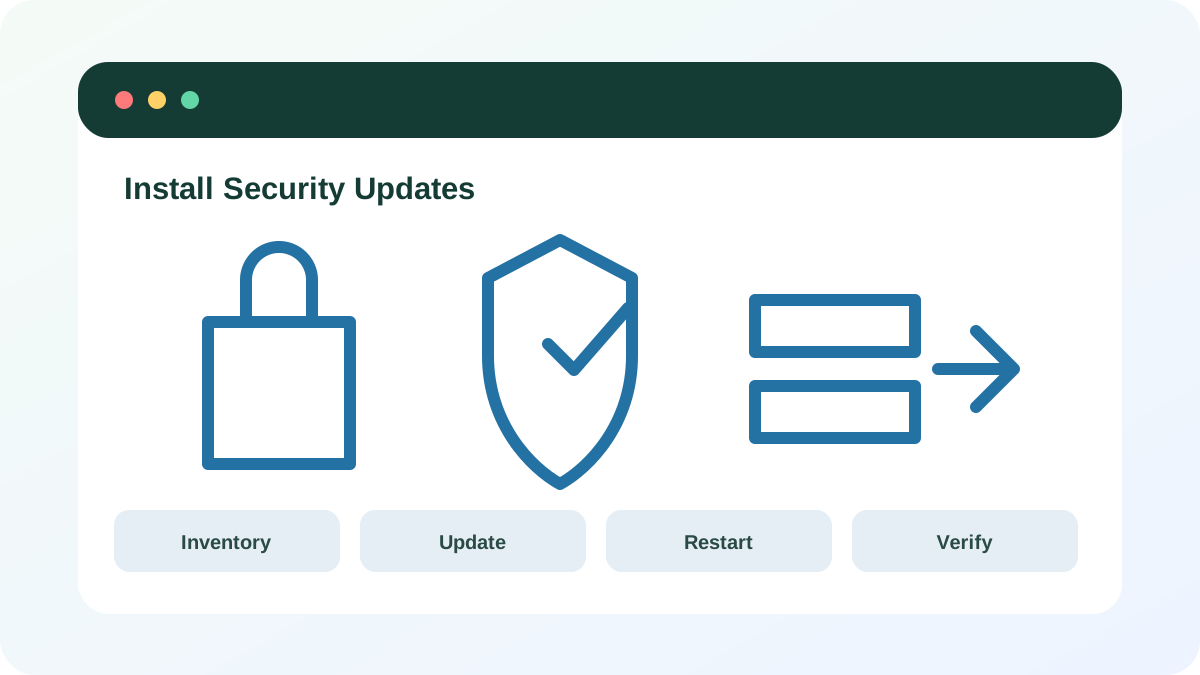
Create a realistic update inventory
Start with software that parses untrusted content or connects directly to the internet: operating system, browsers, email, office suite, PDF reader, messaging, remote-access tools, password manager and router firmware. Include phones and tablets used for account recovery. Avoid third-party “driver updater” or “all-in-one patch” tools that are not provided by the device or software vendor.
- 1
Record the operating system edition and support status.
- 2
List browsers, office/document apps and communication tools.
- 3
Identify apps installed outside an official store.
- 4
Record router or gateway model and firmware page.
- 5
Remove software you no longer use so it does not remain an unmaintained attack surface.
Update with a controlled sequence
Use the product’s built-in updater, operating-system store or official vendor site. Save work and connect laptops to power. For a router, read release notes and export configuration only if the vendor supports safe restore. Do not interrupt firmware installation or restart the router during the write process.
- 1
Back up important current work.
- 2
Install operating-system updates first.
- 3
Update browsers and password managers before general browsing.
- 4
Update high-risk document and communication applications.
- 5
Install router firmware during a planned outage window.
- 6
Restart when required rather than postponing indefinitely.
Verify and monitor after installation
Open the update history or About page and record the new version and date. Test sign-in, printing, VPN and other essential workflows. If an update causes a problem, use the vendor’s rollback or recovery guidance; do not disable the entire update mechanism permanently.
- 1
Confirm the updater reports success.
- 2
Verify the version or build number changed.
- 3
Run one essential workflow.
- 4
Check Windows Security or the product status for warnings.
- 5
Set a reminder to review unsupported devices quarterly.
- Automatic updates are enabled for major platforms.
- Required restarts are complete.
- Unsupported products have a replacement or isolation plan.
Complete a four-layer update review
Check one computer, browser, key application and router.
- 1
Record current versions.
- 2
Confirm support status.
- 3
Install available official updates.
- 4
Restart safely where required.
- 5
Verify versions and essential workflows.
- 6
Document any product that must be replaced.
Common mistakes to avoid
- Using fake update pop-ups or advertisements.
- Installing updates from search-result download sites.
- Ignoring restart requirements for weeks.
- Keeping unsupported software because it reports no updates.
Key takeaways
- Updates reduce known vulnerability exposure.
- Automatic installation still needs restart and verification.
- Unsupported products require replacement or isolation.
Frequently asked questions
Should I install optional driver updates immediately?
Use the device manufacturer or Windows Update guidance and install optional drivers when they address a relevant problem. Do not use unknown driver-updater utilities.
Can an update cause problems?
Yes, which is why backups, release notes, staged timing and verification matter. The answer is not to abandon security updates permanently.
Sources and further reading
- Update SoftwareCISA
- Windows Security app overviewMicrosoft Support
Ready to continue?
Mark the lesson complete so your Learning Path progress stays current on this device.