What you will learn
- Distinguish an endpoint, access point, router, modem or ONT, and ISP.
- Recognize when several roles are combined in one gateway.
- Trace a connection fault to the correct physical link.
- Record model, cabling and status lights without exposing credentials.
What you need
- Access to the home router or gateway area.
- A phone or computer already used on the network.
Give every component one job
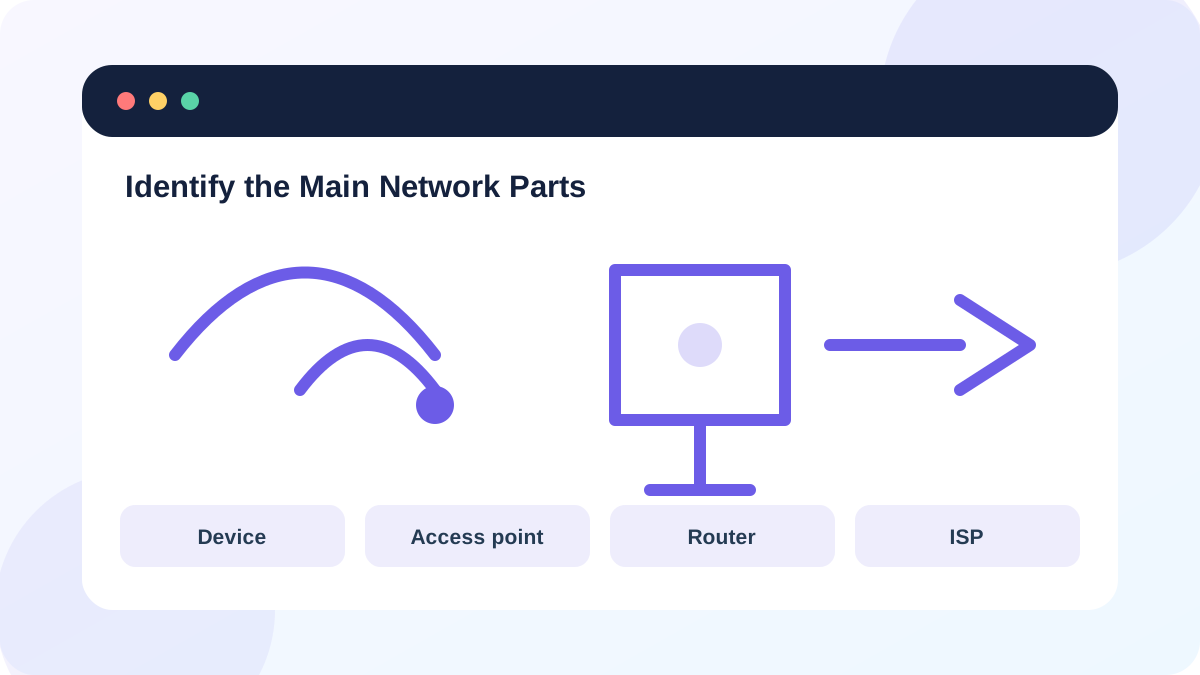
The FTC describes a home Wi-Fi network as a wireless router sending a radio signal that devices use to reach the internet. In practice, the access-point function serves Wi-Fi clients, while the routing function forwards traffic between the local network and an upstream network.
Internet host standards distinguish hosts from routers: a host is the source or destination of communication, while a router forwards packets between networks. Consumer labels are less precise, so rely on connections and functions rather than the marketing name printed on the box.
A modem translates the provider's cable or DSL service. An ONT terminates fiber. Neither term automatically means the device supplies Wi-Fi. An ISP-supplied gateway may combine modem or ONT, router, firewall, DHCP server, Ethernet switch and Wi-Fi access point in one enclosure.
Build a physical connection map
Start at the device with the problem and follow the connection outward. For Wi-Fi, identify the access point or mesh node currently serving it. Follow that unit's Ethernet or wireless backhaul to the primary router, then follow the router's WAN cable to the modem, ONT or provider wall outlet.
Record power and link lights before restarting anything. A missing Ethernet link light points to a cable, port or powered-device problem. A healthy local Wi-Fi connection with an offline modem or ONT points farther upstream.
- 1
Write the affected device name and whether it uses Ethernet or Wi-Fi.
- 2
Identify the access point, router or mesh node that serves it.
- 3
Trace the WAN cable to the modem, ONT or provider gateway.
- 4
Record each device model and the labels on the connected ports.
- 5
Photograph cable positions without including passwords, QR codes or serial numbers.
Use the map to interpret symptoms
If one wireless device fails while other devices on the same access point work, begin at the endpoint. If all wireless devices fail but Ethernet still works, focus on the Wi-Fi radio or access point. If both Ethernet and Wi-Fi clients can reach the router but not the internet, check the WAN link, modem or provider status.
A combined gateway changes the replacement decision. Adding a separate router behind an ISP gateway without understanding bridge mode can create two layers of routing and DHCP. That may still provide internet access while breaking port forwarding, gaming, VPNs or device discovery.
- You can point to the device that assigns local IP addresses.
- You know which box connects directly to the provider line.
- You can state whether Wi-Fi and routing are in one unit or separate units.
Test one boundary at a time
Use the map to test a boundary rather than rebooting every box. Compare another client on the same access point, test Ethernet at the router, then inspect the WAN status. Announce any router or modem restart because it disconnects everyone and can interrupt calls, uploads or smart-home devices.
Do not factory-reset an unknown provider gateway. A reset can erase ISP credentials, voice settings, VLAN configuration and custom Wi-Fi names. Record the original state and use a normal power restart only after the fault has been localized.
- 1
Test a second device on the same Wi-Fi network.
- 2
If available, test one computer by Ethernet to the router.
- 3
Open the router status page and record WAN state without changing it.
- 4
Check modem or ONT status lights against the provider manual.
- 5
Escalate to the ISP with the exact failing boundary and timestamps.
Draw a one-page home network map
Create a diagram that another person could use during an outage.
- 1
Draw every router, mesh node, modem or ONT.
- 2
Label WAN, LAN, Ethernet and wireless links.
- 3
Add the default gateway address without recording the admin password.
- 4
Mark which devices remain online during the current problem.
- 5
Write the first safe test for each boundary.
Common mistakes to avoid
- Calling every box a router.
- Restarting all devices before recording status lights.
- Factory-resetting an ISP gateway as a first step.
- Sharing photos that reveal Wi-Fi or administrator credentials.
Key takeaways
- A device, access point, router and modem or ONT have different jobs.
- Combined gateways hide several roles inside one enclosure.
- A physical map turns a vague outage into a boundary test.
Frequently asked questions
Is a mesh node a router?
The primary mesh unit may route traffic, while satellite nodes usually act as access points with wired or wireless backhaul. Check the product topology.
Can I remove the ISP modem?
Only if the provider supports a compatible replacement or direct fiber handoff. Do not disconnect provider equipment without confirming service requirements.
Sources and further reading
- How To Secure Your Home Wi-Fi NetworkFederal Trade Commission
- RFC 1122: Requirements for Internet HostsRFC Editor
Ready to continue?
Mark the lesson complete so your Learning Path progress stays current on this device.