Table of Contents
What is the TestFlight 2026 redemption code? Do you know how to use TestFlight to install beta apps on your iPhone? This article will give you the answer.
With the rise of smartphones, hundreds of exciting new apps are being developed for the iPhone every day. Downloading these new apps can take some time while waiting for them to officially appear on the App Store. However, there is a way to get early access to these apps by installing beta versions on your iPhone using TestFlight.
For Android users, installing the beta version of an app is quite easy. But on iPhones, unlike the Play Store, you can't install apps directly from the App Store. Instead, you need to download TestFlight, an iOS app, to be able to use the beta version.
What is TestFlight on iPhone?
TestFlight is an application developed by Apple to help developers reach potential users and provide early access to their apps. This can help developers understand how the app works before a public launch. Developers organize beta programs and send invitation links to a limited number of users to test the app using TestFlight.
To test beta versions of apps and app clips using TestFlight, you need to accept an email invitation or public link from the developer and have a device to test with. You will then be able to access the builds that the developer provides to you.
Note: Developers may set criteria for their beta version, such as preferred devices or operating systems. You must have that preferred device and operating system to accept the invitation. You can tap or click Learn More in the invitation to see the specific device and operating system requirements the developer is looking for.
If you are a member of the developer team, the developer may grant you access to all builds or certain builds.
To report fraudulent, deceptive, or offensive, illegal, or abusive content in the beta app, tap or click Report a problem in the TestFlight app or in your invitation email.
How to use TestFlight to install beta applications
There are two ways to join the app's beta program on iPhone using TestFlight.
Join the beta program using the invitation link
Developers often post about their app's beta program along with invitations on social media. If you can use one of these invitation links, they can download the beta app on TestFlight.
Discover the beta app at Airport
Additionally, Apple offers a service called Airport that helps users discover beta versions of apps. Users have a wide selection of apps to choose from across various categories. However, these apps can only be installed and used if the beta version is not yet complete. All you need to do is register for Airport using your Apple ID on your web browser and access the Beta app catalog.
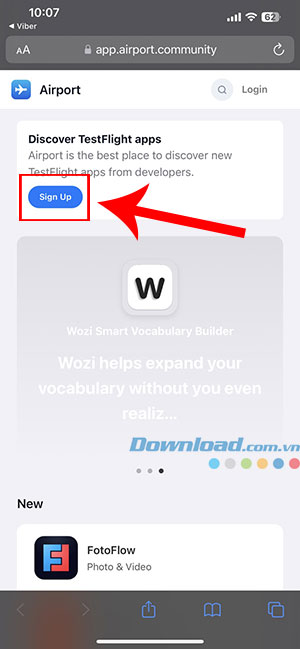
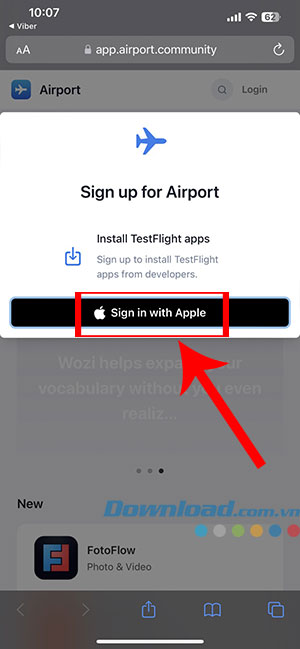
How to download and use TestFlight
After receiving an invitation link or being ready to select an app from Airport, here's how you can install it on your iPhone.
Step 1: Download the TestFlight app from the App Store on your iPhone.
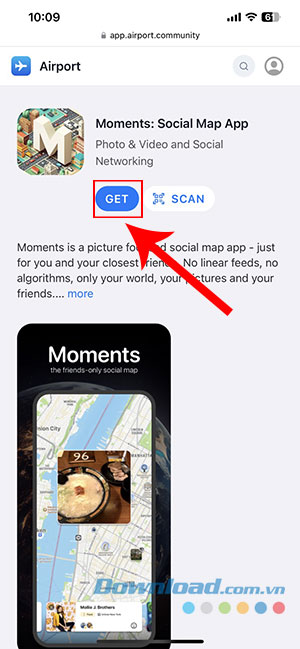
Step 2: Open the invitation link or select a beta app from Airport and tap Get if you choose a beta app from Airport.
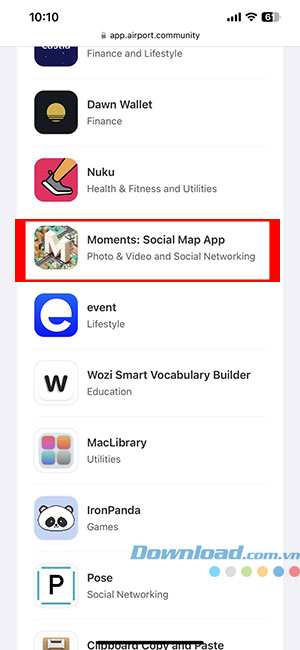
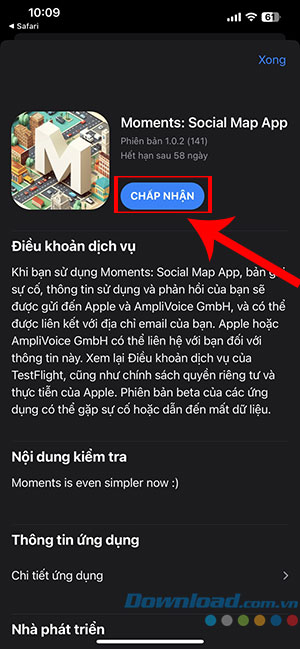
Step 3: Click Accept.
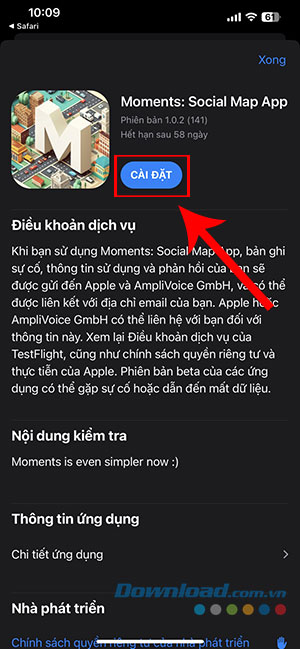
Step 4: Once the app is ready to download, tap Install.
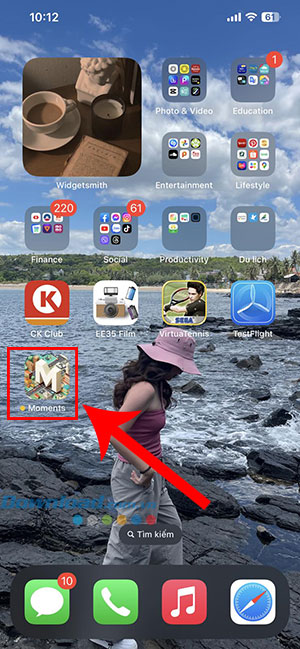
Now everyone will see the downloaded beta app on the home screen. If a new beta build isn't uploaded, you can only use the app until the beta expires. After it expires, you can check if the app is available on the App Store through the public release.
Frequently Asked Questions about TestFlight
What is TestFlight?
- TestFlight is a service that allows developers to beta test their apps with a larger user base before officially releasing them on the App Store.
Who can use TestFlight?
- Anyone with a valid Apple ID and a compatible device can be invited to participate in app testing via TestFlight.
What are the requirements to use TestFlight?
- You need an Apple ID, an Apple Developer account, and the app must be uploaded to the App Store Connect platform.
For Testers
How do I install the beta app on TestFlight?
- You will receive an invitation via email or a link from the developer. You will then be asked to install the TestFlight app from the App Store if you don't already have it.
How do I send feedback?
- Use the Send Feedback button in the TestFlight app, usually located under the app description.
Is it possible to install the TestFlight app on multiple devices?
- Yes. You can install the TestFlight app on multiple devices linked to your Apple ID.
How long does a beta test last?
- Each build can be tested for a maximum of 90 days from the date the developer uploads it.
Does TestFlight affect other devices or applications?
- Installing apps through TestFlight is generally safe and will not negatively impact your device or other applications.
For Developers
How do I add testers?
- You can invite internal testers (who have access to your Apple Developer account) and external testers (who don't need a Developer account).
How many you can be invited to participate in the experiment?
- TestFlight allows up to 100 internal testers (each using up to 30 devices) and 10,000 external testers per application.
How do you manage test subjects?
- You can manage testers through the App Store Connect platform.
What are the benefits of using TestFlight?
- TestFlight simplifies the beta testing process, providing a convenient way to gather feedback from a large number of testers.
Related Articles
 How to Use TestFlight: Test Beta Apps on iOS6 minutes read
 TestFlight Will Be Updated with a New Interface Later This Year4 minutes read
 Instructions for Installing iOS 16 Beta Version4 minutes read
 How to Install iOS, iPadOS, watchOS, and macOS Betas6 minutes read
 How to Install the Latest iOS Beta on iPhone7 minutes read
 Compare the Speed Between iOS 12 Beta 1 and iOS 12 Beta 8 on iPhone 6S3 minutes read
Reader Comments 0
Sign in with email or Google to join the discussion.