Table of Contents
This guide explains how to write vietnamese in proshow producer using a clear, step-by-step process. It also highlights the settings and checks that can help you avoid common errors.
Note: Your computer needs to have the Unikey Keyboard and VNI font Installed
How Write Vietnamese in Proshow Producer Works
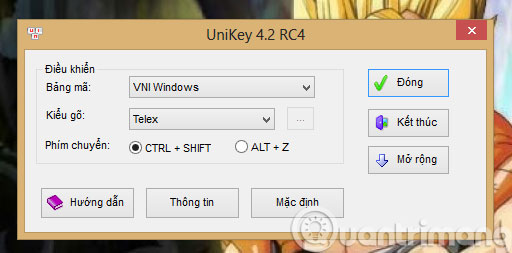
Step 1 : Turn on the Unikey Control panel and select Encoding as VNI Windows And Typing MethodTelex
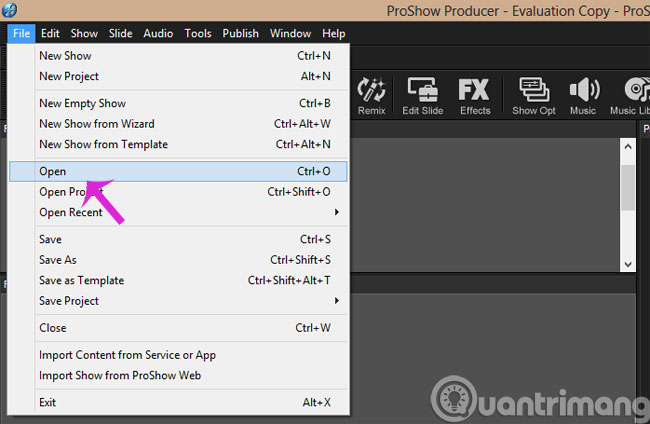
Step 2 : From the interface of Proshow Producer , press the File Menu and select Open And open the slideshow to write
Step 3 : when needed to write the word on any slide, double-click it

Step 4 : In the new interface, click Add In the Captions Section

Step 5 : When the frame of writing Caption Text Appears, select the Font Item of VNI Times And can adjust the font color, font size. then write the caption I want to upload. (In the Caption Text Box, the font may be corrupted, but the frame of the font preview is error-free.)

So you know how to write Vietnamese words on a slide in Proshow Producer, with other slides you do sequentially.
- How to use Proshow Producer to make photo slides
- How to make HD video with low capacity?
- Create slideshows with YouTube
Good luck!
FAQ
What should I prepare before I write vietnamese in proshow producer?
Review the requirements in the guide, confirm that your device or software is compatible, and save important work before changing settings related to write vietnamese in proshow producer.
Why might write vietnamese in proshow producer not work as expected?
The most common causes are incompatible versions, missing permissions, incorrect settings, or an interrupted internet connection. Recheck each step and restart the app or device when appropriate.
Can beginners follow these write vietnamese in proshow producer steps?
Yes. Follow the steps in order, avoid skipping confirmation screens, and compare your interface with the screenshots because labels may differ slightly between versions.
Related Articles
 10 Best Tips for Using ProShow Producer21 minutes read
 Instructions to Use ProShow Producer to Make Professional Videos10 minutes read
 Insert Logos into Videos with Proshow Producer6 minutes read
 How to Use Proshow Producer to Create Video from Photos, Create8 minutes read
 How to Create Videos from Photos with ProShow Producer Quickly and6 minutes read
 How to Make Music Waves with Proshow Producer: Step-by-Step Guide5 minutes read
Reader Comments 0
Sign in with email or Google to join the discussion.