Table of Contents
This practical guide explains how to Retrieve Facebook Password, Recover Latest Account through clear, ordered steps. It also covers useful settings, common mistakes, and checks that can improve the final result.
Responsible use: Apply these instructions only to files, accounts, devices, or systems you own or are authorized to manage.
Similar to other social networks, Facebook provides simple forms to help you retrieve your password when you forget it. Let's learn in detail how to retrieve your Facebook password and account recovery options in the article below.
How to view Facebook password when forgotten
Article content: I. Recover FB password on computer. II. Recover FB password on phone.
How to Retrieve Facebook Password on Computer
If you forget your password when logging in on your computer, here are ways to recover your account:
Method 1. Recover Account Using Gmail
You are not the owner of the phone number registered with Facebook or you want to get the password by retrieving Facebook password using Gmail, then you try this way:
Step 1 : On the browser, open Facebook And click " Forgot password ".
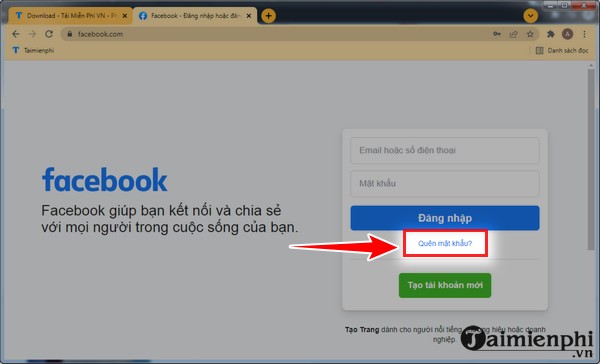
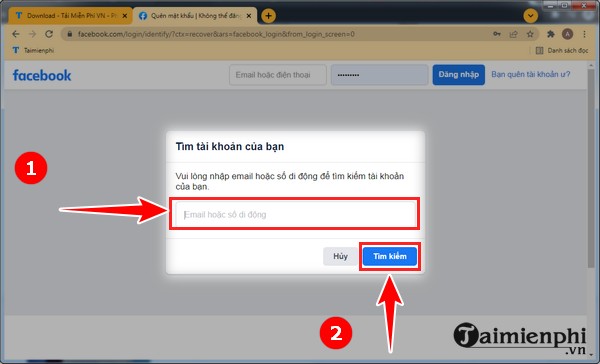
Step 2 : Enter your Facebook login email in the box And click " Search ".
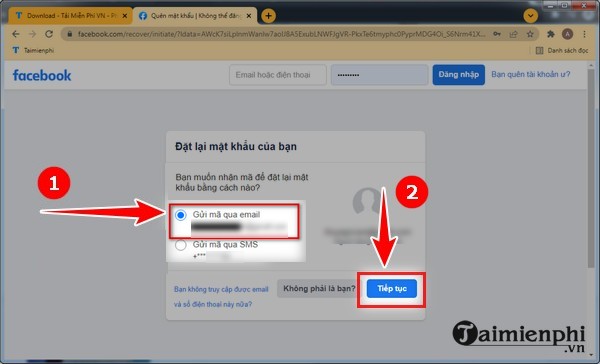
Step 3 : Click " Send code via email " then click " Continue ".
Step 4 : At this time, the Confirmation code will be sent by Facebook via email . Open The email to get the code and Enter it in the box . Next, click " Continue ".
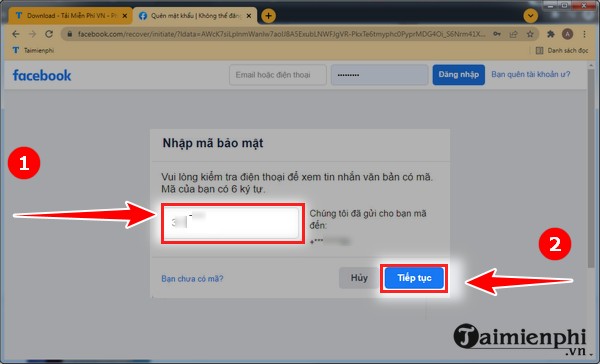
Step 5 : Enter your new password In the box and click " Continue ".
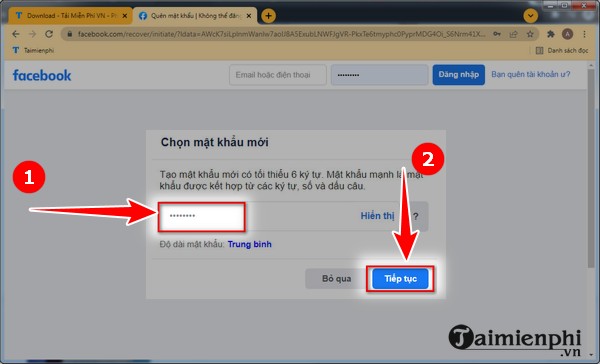
After that, you have got the new password and access to Facebook account normally.
Method 2. Create a New Password Using Your Phone Number
This method of getting a FB password using a phone number is similar to the steps of getting a password using an email. However, instead of entering and selecting an email, you enter and select a phone number. Then, Facebook will send a code to your phone number. You open the message to get the code and continue with the steps above.
TipsMake.com also shares more ways to log in to Facebook, let's explore to see what new ways to log in there are.
Method 3. Open Password Manager on Browser
If you can't remember your email login password, or it's not your phone number or Facebook login email, don't worry too much. Use the Password Management feature with the following instructions to retrieve your password.
Note : This method only applies if you have logged into Facebook on your computer and saved your password on your browser.
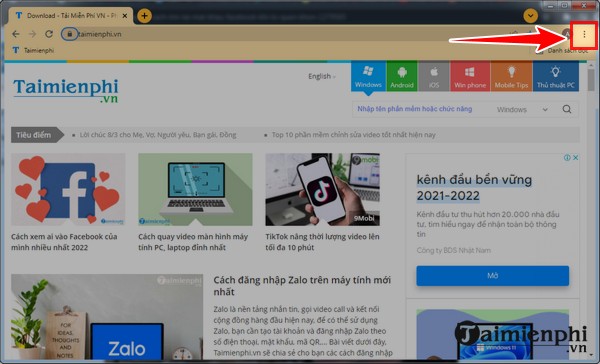
Step 1 : On The chrome browser , click on the 3 dots Icon in The upper right corner As shown.
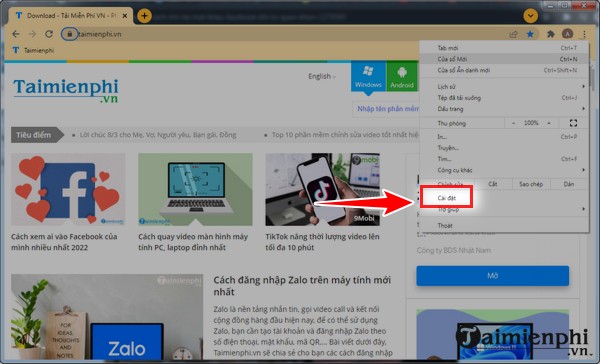
Step 2 : Click " Install ".
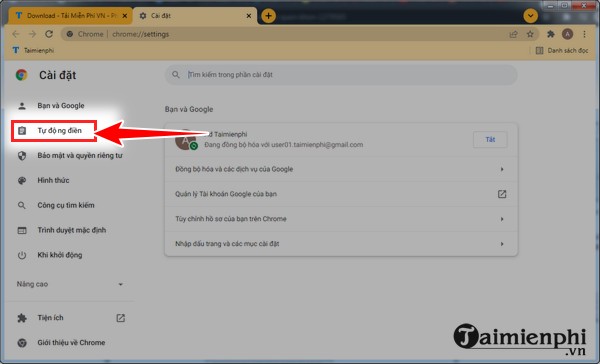
Step 3 : Click " Autofill ".
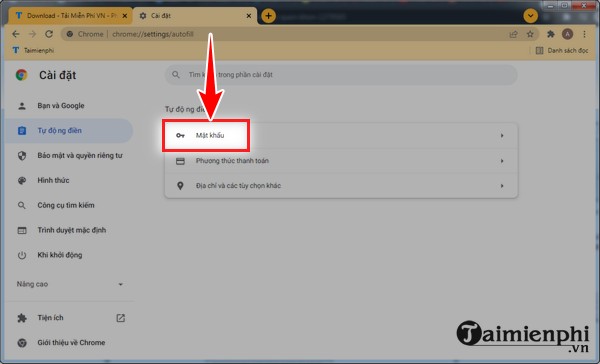
Next, click " Password ".
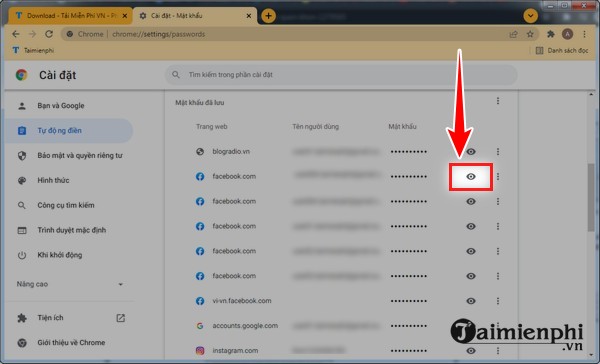
Step 4 : Go to the bottom of The browser interface , Find the Facebook You want to find the password for, then look to the right, click The eye icon , your password will appear.
Method 4. Get Facebook Password by Not Logging Out of Facebook
This method works when you are still logged into your account. You want to retrieve your password so you can log in on another device.
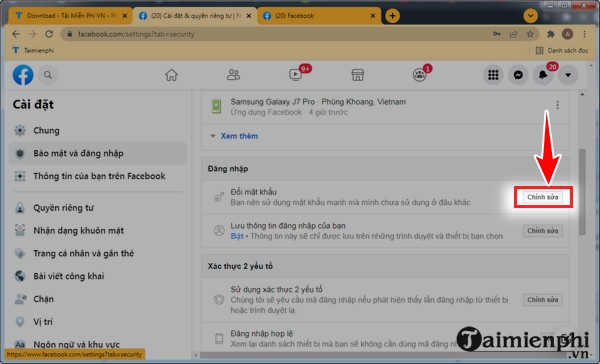
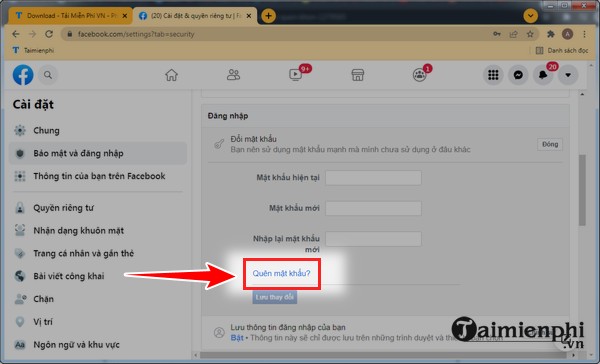
Step 1 : On your browser, go HERE To access Facebook settings. Step 2 : In the Change Password section, look to the right and click " Edit ".
Step 3 : Click on " Forgot password ". Note : If you can't click, right-click and select open new tab.
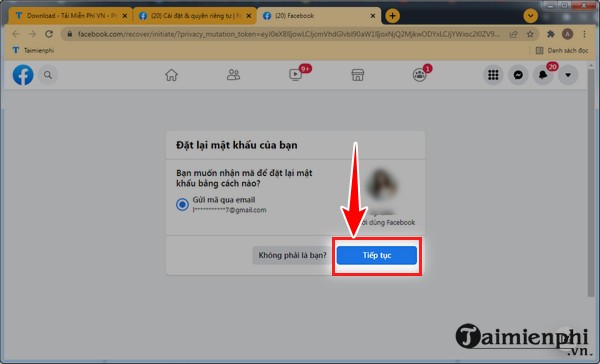
Step 4 : Click " Continue " and follow the system's instructions to get the password.
Method 5. Recover FB Password Using CCCD
You can also get your FB password through your CCCD in the following way.
Note: You should take a photo of the front and back of your CCCD to make the steps easier.
Step 1 : You access the link HERE . Step 2 : You will see a notice with terms appear.
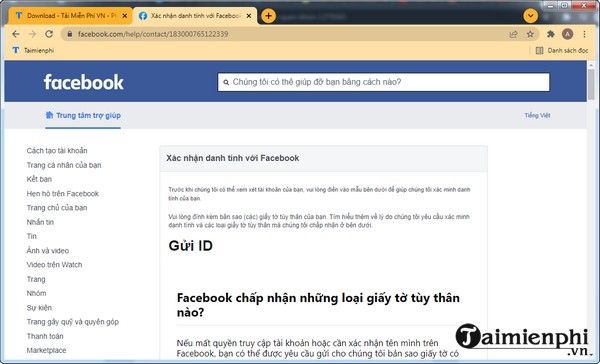
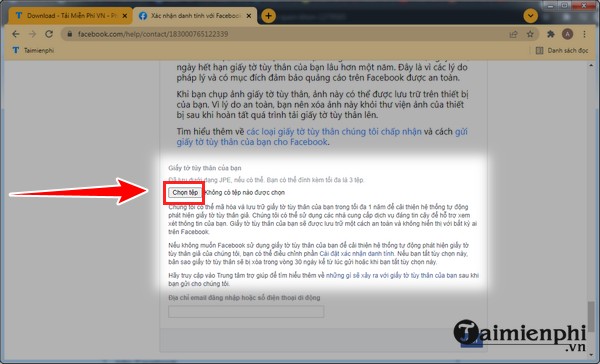
Step 3 : After reading the terms, click " Choose file " to Upload the photo as requested.
Step 4 : After finishing, scroll down, Enter your email or phone number In the required box and click " Send ".
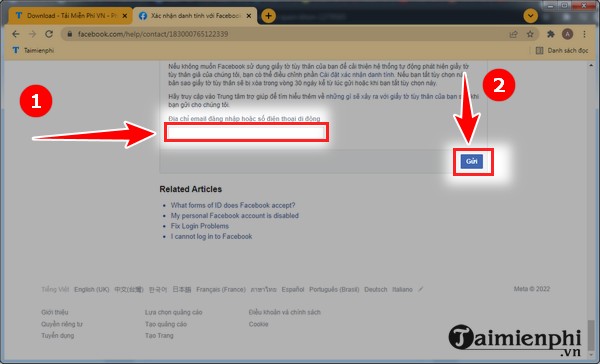
Facebook will verify and respond to you within the next 30 days.
Method 6. Recover Facebook Password Using User Name
You can also use the following method to retrieve your password. However, this method only works if your browser is not logged into any Facebook account.
Step 1 : You access the link HERE .
Step 2 : Enter your email or phone number In the box and click " Search ".
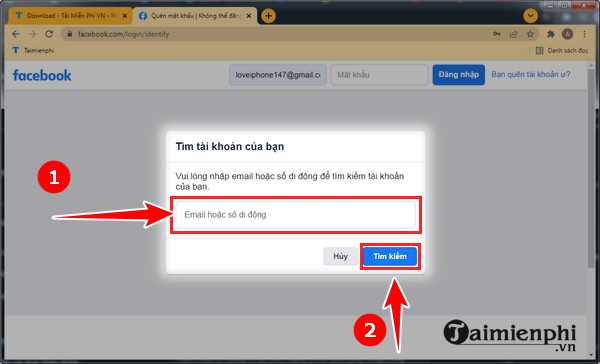
Step 3 : Click " You can no longer access this email and phone number "
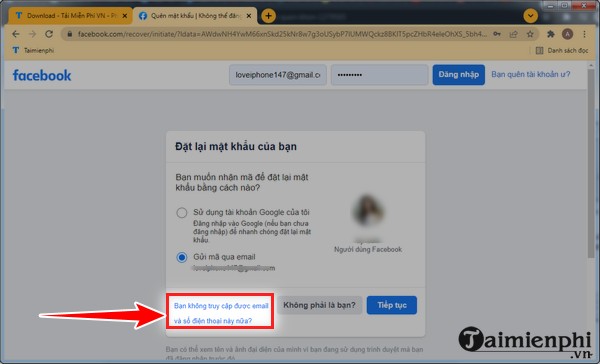
Next, you perform the required authentication steps to retrieve your password.
Instructions to Retrieve FB Password on Phone
If you forget your Facebook password and are using a phone, you can retrieve and restore your Facebook password by doing the following:
Step 1 : Open the Facebook application. Step 2 : Click " Forgot password " (Image 1). At this time, Facebook displays two options (Image 2). - To get a Facebook password by phone number , enter the phone number in the " Phone number " box and click " Find your account ". - To get a Facebook password by Email, at The bottom of the interface, click " Search by your email ". TipsMake will guide you through this method.
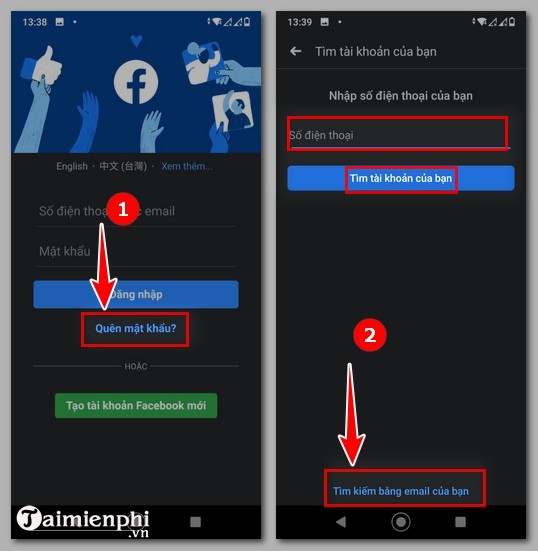
Step 3 : Enter your login email In the box and click " Find your account " (Image 3). Next, you have 2 options. - Send code via SMS : Facebook will send it to the phone number registered with your Facebook account. - Send code via email : Facebook will send the code to the email associated with your Facebook account email.
Then, when you're done selecting, click " Continue " (Image 4)
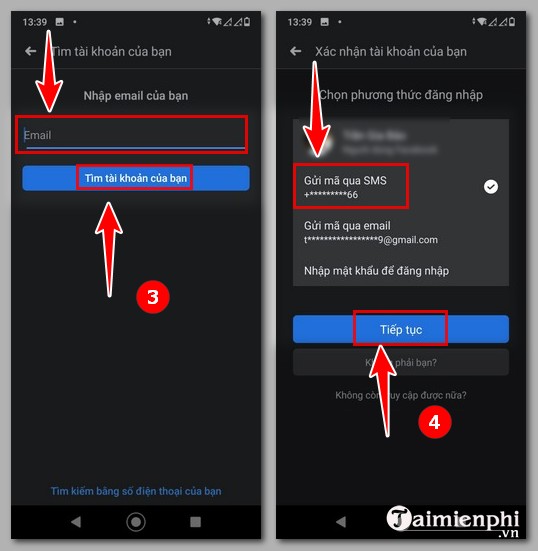
Step 4 : If you choose To send via SMS , Open the phone message Or if you choose To send via email , Open the email To get the code. Then Enter it in the box And follow the system's instructions to get your Facebook password back.
The above methods help you recover your account efficiently without having to create a new account. To avoid forgetting your password in the future, you can save your password or remember these account recovery methods.
FAQ
How do I Retrieve Facebook Password, Recover Latest Account?
Follow the steps in this guide in order, verify each setting before continuing, and check the result after every major change.
What should I prepare before I Retrieve Facebook Password, Recover Latest Account?
Confirm compatibility, install current updates, save important work, and back up data before changing system or application settings.
What is the responsible way to use these instructions?
Use the information only with files, accounts, devices, or systems you own or are explicitly authorized to manage. Do not bypass another person's security.
Related Articles
 Instructions to Retrieve Facebook Password4 minutes read
 How to Retrieve Facebook Password Using Gmail on Computers5 minutes read
 How to Retrieve a Tik Tok Password When It Is Lost3 minutes read
 How to Retrieve a Hacked Facebook Account - Recover Facebook7 minutes read
 What to Do When Forgetting Your Facebook Password?8 minutes read
 Recover Your Skype Account Password3 minutes read
Reader Comments 0
Sign in with email or Google to join the discussion.