Table of Contents
This guide explains how to download Disney Plus Movies and TV Shows to Watch Offline, with clear steps, practical tips, and important checks before you begin.
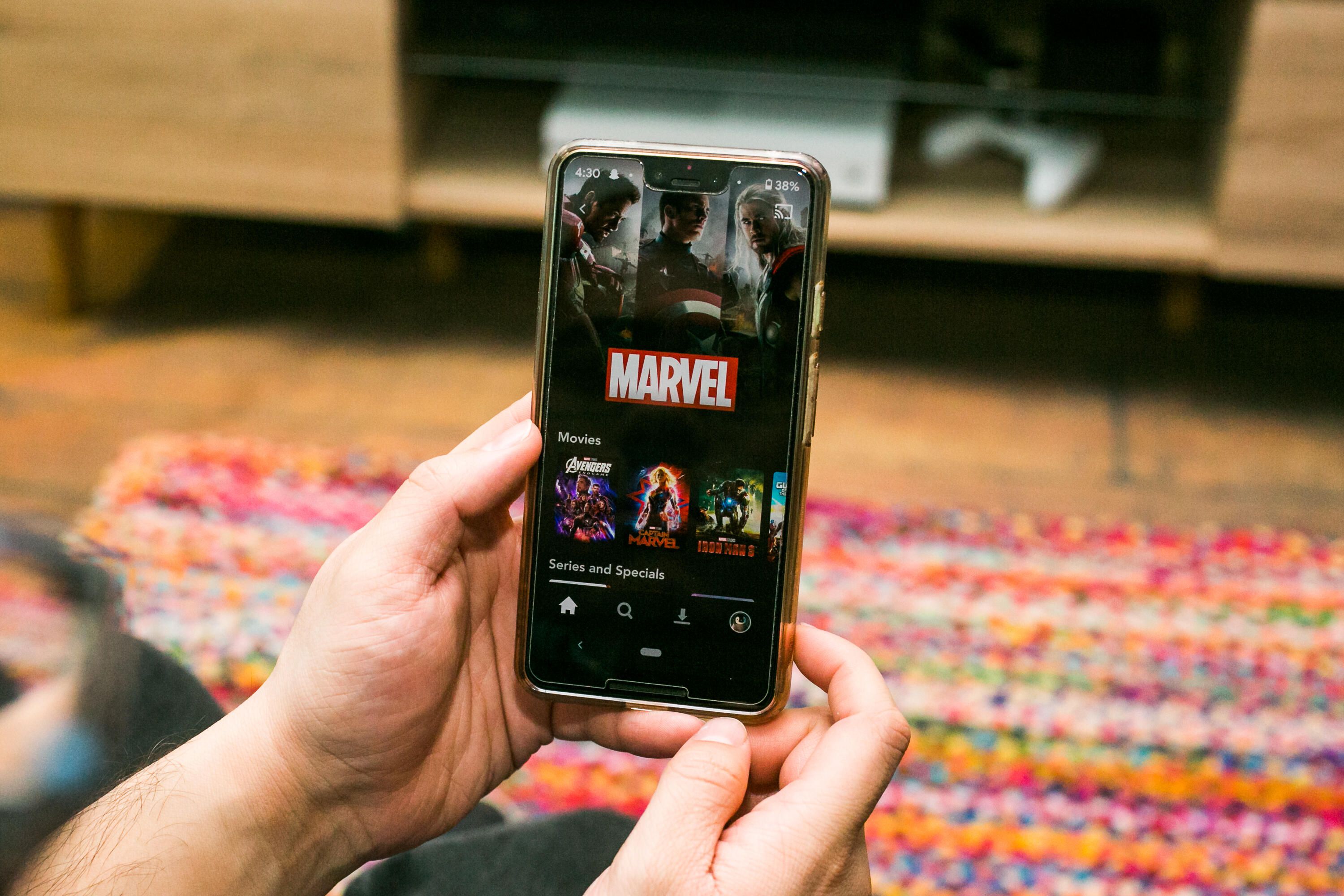
Disney Plus is the brand's $7-a-month rival to Netflix and other media streaming platforms, including the new HBO Max. With it, Disney wants to control the way it monetizes its massive catalog of titles. Disney also wants to create original programming, following in the footsteps of Amazon, HBO, Netflix and other rivals. Here are some of the biggest Disney Plus titles that come with the new streaming service. You've also got the option to bundle with Hulu and ESPN Plus for $13 a month.
What's unique about Disney Plus compared to all the rest is that it's the only one of its kind that makes its entire catalog of films and shows available for download, not just certain titles and episodes. Here's how to start watching your favorite Disney shows offline on iPhones ($699 at Apple) and Android devices.
Read more: Best live TV streaming services for cord cutters in 2020

Download Disney Plus movies and shows
1. Install the Disney Plus app for iPhone or Android.
2. Open the app and sign in to or register for your Disney Plus account.
3. Select the title you'd like to watch offline. The app has you download over Wi-Fi by default, but you can go into the settings and also download over data if you prefer. This will count against any monthly data cap you may have.
4. Tap the Download icon -- it's shaped like a down-facing arrow.
Download times may vary, depending on your Wi-Fi or data network strength. As your title is downloading, you'll see a ring going around the download icon. Once the ring has fully circled, a checkmark icon replaces the download icon -- this means you can start watching the movie offline.

Where to find downloads
As with Netflix, Disney Plus stores all of your downloads in one place so you can start watching when you're offline.
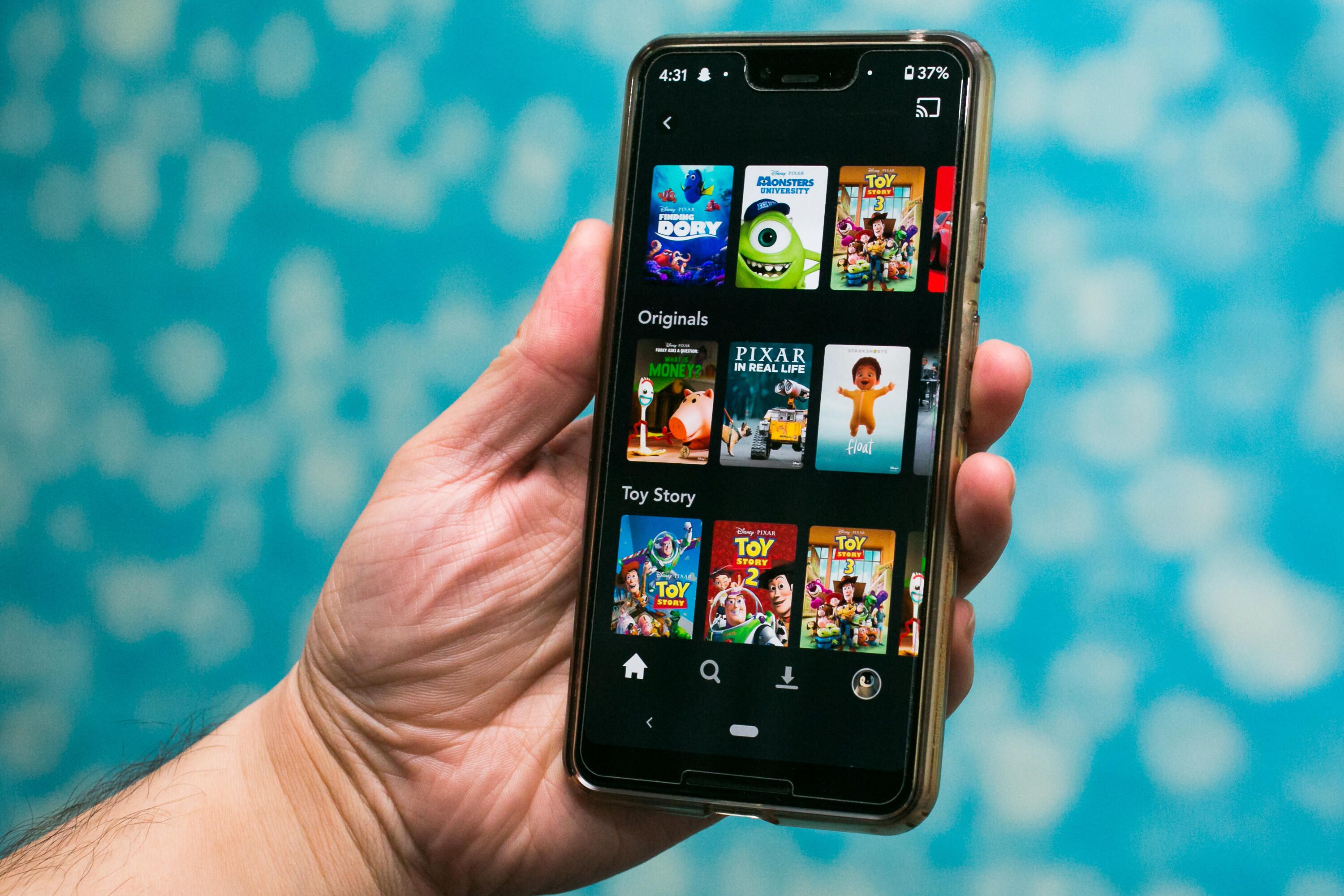
1. In the Disney Plus app, select the Download icon at the bottom of the screen.
2. From there, you'll see everything you've downloaded. Disney doesn't apply an artificial limit to how much you download. You can download as many titles as your phone's storage space will allow.
How to delete a title from your downloads
After you've watched a movie and no longer need it taking up space on your phone, you can remove it from the downloads section.
1. Open the app and select the Download icon at the bottom of the screen.
2. Find the movie you want to delete and tap the Checkmark icon, located to the right of the title.
3. Select Remove Download .
If you decide later that you want to watch again, you can always download your film or TV show again.
Want to know more about Disney Plus? Here's the list of movies and shows you can watch now, how to watch free for one year and how to cancel if you decide the streaming service isn't for you.
FAQ
What should I know about Download Disney Plus Movies and TV Shows to Watch Offline?
Focus on the key features, requirements, limitations, and practical use cases explained in this guide.
How do I get the best results with Download Disney Plus Movies and TV Shows to Watch Offline?
Follow the recommended steps, use current software or information, confirm compatibility, and review settings before major changes.
Are there any risks or limitations?
Potential limitations depend on compatibility, data quality, cost, privacy, support, and how the product or method is used.
Related Articles
 How to Add / Remove Movies and Shows from Watchlist on3 minutes read
 How to Watch Disney Plus from Abroad with a VPN3 minutes read
 Instructions for Downloading Movies from Netflix in Windows 105 minutes read
 How to Download Netflix Videos to Watch Offline: Step-by-Step6 minutes read
 How to Download Movies on Moviemoi. Net4 minutes read
 Disney Delays Black Widow, Rest of Its Marvel Movies, Mulan3 minutes read
Reader Comments 0
Sign in with email or Google to join the discussion.