Table of Contents
Use the Genesys integration according to where a conversation begins. Genesys-to-ElevenLabs routing uses connector triggers; an ElevenLabs-originated text chat uses Open Messaging when it needs a Genesys human agent. Configure and test those paths separately.
Before starting, have an authorized administrator confirm the Genesys region, required roles, ElevenLabs agent, target queue, and data-retention requirements. Use test conversations before routing live customers. Consult the current integration reference for version-specific fields.
Choose the conversation direction
Integrate ElevenLabs' conversational AI with Genesys Cloud to equip your call center with voice and text support agents that sound natural. This integration is bidirectional; you can choose the appropriate direction through the credentials you use to connect.
With OAuth2 Client credentials, Genesys Cloud will route conversations to your agent: Voice calls via the Audio Connector and chats via the Bot Connector – both triggered from a workflow in the Architect.
With OAuth2 Client authentication combined with Open Messaging, your agent can forward a conversation initiated on the ElevenLabs side (e.g., on WhatsApp) to a human support agent in Genesys Cloud. This agent will respond directly from Genesys Cloud, while the chat history remains stored at ElevenLabs.
Features
| Ability | Support |
|---|---|
| Zero retention mode (ZRM) | Not supported |
| Attachments in chat | Not supported - conversations are audio and text only. |
| Attachments in the tool | Not supported - the tools only work on text. |
Connect the accounts
This integration uses the OAuth 2.0 Client Credentials mechanism for authentication. Both credentials share the same OAuth client fields, differing only in the purpose of the connection.
| Authentication | Time of use | Available at ElevenLabs |
|---|---|---|
| OAuth2 Client | Genesys Cloud calls your agent from an Architect thread. | Bot Connector and Audio Connector triggers |
| OAuth2 Client + Open Messaging | Your agent forwards an ElevenLabs conversation to a human agent in Genesys Cloud. | Go to the Open Messaging tool. |
A single connection serves one direction. To use both, create two connections, one for each authentication method.
1. Create an OAuth client in Genesys Cloud
In Genesys Cloud Admin Center, navigate to Admin > Integrations > OAuth and click Add Client .
2. Configure the OAuth client.
- Set Grant Type to Client Credentials
- Have the Genesys administrator review the roles and division access required by the current integration documentation. The provider setup uses an admin role; assess that scope before creating a production connection.
- Save client configuration
3. Copy client credentials
After creating the OAuth client, copy the Client ID and Client Secret immediately – store the secret securely and follow the current client-creation prompts. Never paste secrets into agent instructions or a public support ticket.
4. Select a region
Specify your Genesys Cloud region (use the exact region assigned to your organization; do not infer it from your country).
5. Connect with ElevenLabs
In the ElevenLabs dashboard, go to Agents > Integrations , click Add Integration , and select Genesys . In the Configure tab , select credentials, then enter your region, Client ID , and Client Secret . The OAuth2 Client + Open Messaging credentials also have an optional Integration Name up to 100 characters long.
Connecting with the OAuth2 Client + Open Messaging credentials will create an Open Messaging integration with the Integration Name you enter in your Genesys Cloud organization. Choose a name you can recognize when specifying the message route for it. If you leave it blank, ElevenLabs will choose a random name such as ElevenLabs - Fierce Tiger. The OAuth client needs permissions to create the Open Messaging integration; otherwise, the connection will fail due to permission errors.
Route Genesys conversations to ElevenLabs
Audio Connector
For voice-based agents, configure Genesys Audio Connector to connect phone numbers to your ElevenLabs AI conversational agents.
Bot Connector
For text-based agents, use the Genesys Bot Connector trigger to enable chat and messaging interactions. Bot Connector automatically creates and configures integrations within your Genesys Cloud environment.
Configure the Bot Connector trigger
1. Add the Bot Connector trigger.
On the Integrations page in the ElevenAgents dashboard, open the Genesys integrations section and navigate to the Triggers tab . Select Genesys Bot Connector .
2. Configure trigger fields
Fill in the required fields:
- Agent : ElevenLabs agent will handle incoming conversations.
- Integration Name : The name for the integrated Bot Connector that will be generated in Genesys Cloud (e.g., 'ElevenLabs Support Bot'). This name is used to retrieve the integrated bot, and the bot name is referenced in the Architect flows.
3. Activate the trigger.
Save and activate the trigger. ElevenLabs automatically creates a Bot Connector integration in your Genesys Cloud environment for successful delivery. Deactivating the trigger will remove the integration from Genesys Cloud.
Configure incoming message flow
In Architect, open the Inbound Message Flow you want to use.
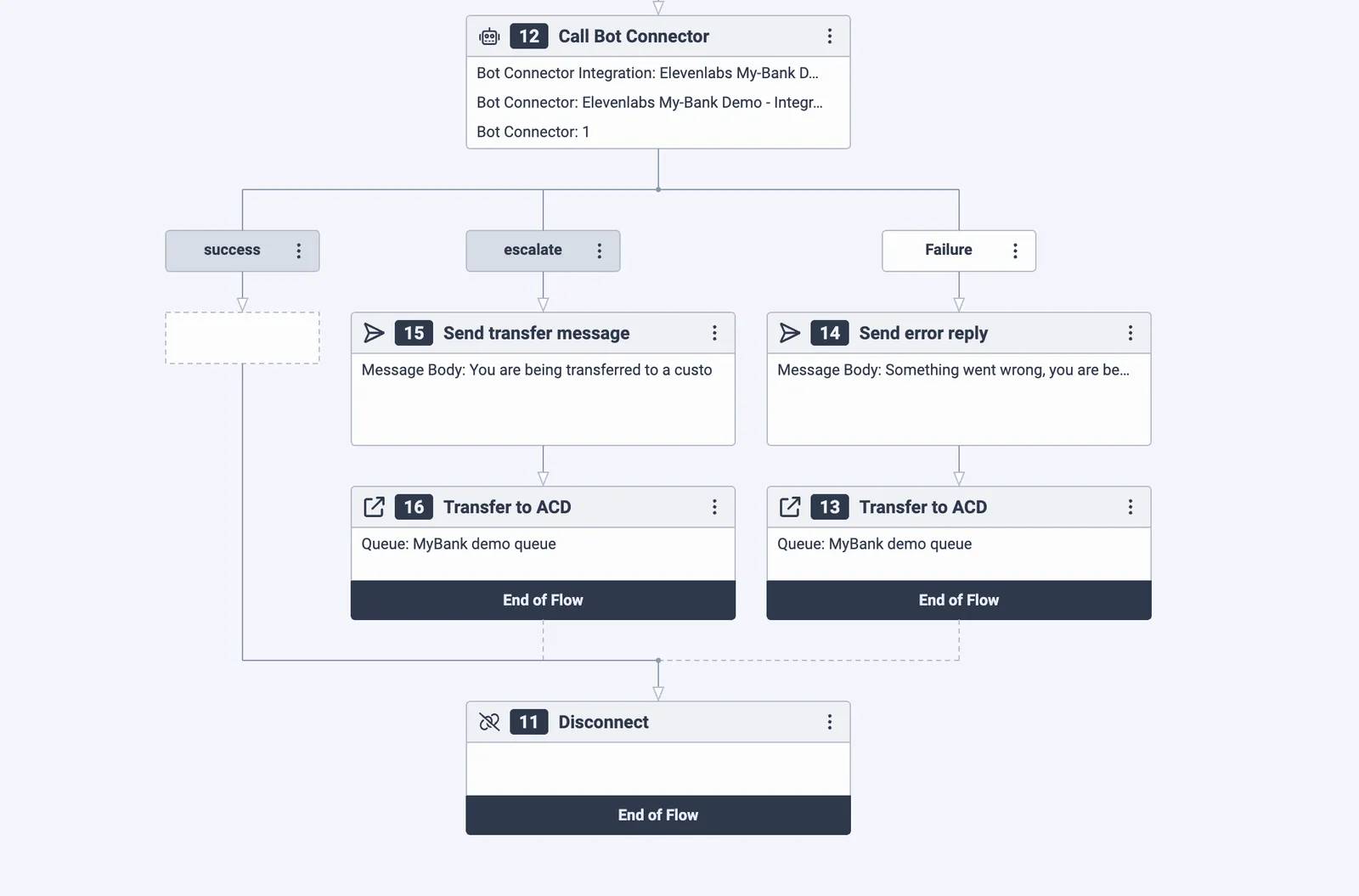
1. Add the Call Bot Connector node and point it to your bot integration and bot name (both derived from the Integration Name you set in the trigger configuration).
2. Handling returned intentions:
success→ return the AI agent’s response to the userescalate→ transfer to the designated support queue- failure or error path → transfer to the fallback queue
Transfer configuration
To allow your agent to transfer the conversation to human support, configure the following in ElevenLabs:
1. Add the State Update tool.
In your agent configuration, add the Update state system tool. Configure this tool to set the dynamic variable genesys_should_escalateto true.
2. Configure system prompts
Add instructions that explain when to offer escalation and how to update the state:
### Escalation When escalating, ALWAYS ask first if the user would like to talk to another client services team member. If they say yes, use the update_state tool to set the genesys_should_escalate dynamic variable to true.3. Add business rules
Define the cases that require a human handover in the agent’s business rules. For example:
- If the knowledge base covers only part of a request, answer the supported part and offer human escalation for the remainder.
- If a question isn't in the knowledge base, respond: "I can't assist with this issue here." Then, forward the request to a member of the customer service team.
When the agent is set genesys_should_escalateto true, the Bot Connector will return the forwarding intent, thereby triggering the forwarding process you set up in the Architect.
Transferring conversations with Open Messaging
Use the Transfer to Open Messaging tool when a conversation starts in ElevenLabs and your agent needs to transfer that conversation to a human agent in Genesys Cloud. This tool requires a connection established using OAuth2 Client + Open Messaging credentials .
How it works
When the agent calls this tool, ElevenLabs opens a conversation on the Open Messaging integration established through that connection. Genesys Cloud routes this conversation through the incoming messaging process assigned to that integration, sending the conversation to a queue and a human agent. This agent sees a summary and the content of the conversation up to that point. Messages from the human agent are sent to the client on the original channel, and responses from the client are also forwarded to that agent, until the agent finishes the conversation in Genesys Cloud. The ElevenLabs agent then takes over the conversation. The chat history remains stored within ElevenLabs.
The Open Messaging transfer feature only applies to text-based conversations.
Transfer configuration
1. Connect using the authentication information "OAuth2 Client + Open Messaging"
Follow the setup steps, select "OAuth2 Client + Open Messaging" as the authentication credentials, and optionally enter an Integration Name . ElevenLabs will create an Open Messaging integration (with the corresponding name or a random name) in your Genesys Cloud organization.
2. Setting up incoming message flow in Genesys Cloud
In Genesys Cloud, create an inbound message flow in Architect to route messages to a queue, then add a message route using the newly created integration as the recipient address for that flow.
3. Add tools to your agent.
In the agent configuration, open Tools , click Add tool , and select Transfer to Open Messaging from the Genesys integration. Select the connection you created using your OAuth2 Client + Open Messaging credentials.
4. Instruct the agent at the transition point.
Add forwarding instructions to the agent's system prompt, for example:
### Handover If the user asks to speak to a human, or you cannot resolve the request, call the transfer_to_open_messaging tool with a short reason. Do not ask follow-up questions first. Remove connection
Deleting a connection in ElevenLabs will also delete the Open Messaging integration it created in Genesys Cloud. Genesys Cloud will not allow deleting an integration if there is still an inbound message flow assigned to it. You need to delete the message flow from the integration first, and then delete the connection.
Test the route before production
- Confirm that a normal request reaches the intended AI agent and returns a response.
- Test escalation and the failure route with a staffed queue.
- Verify that the human receives the expected conversation context and that replies reach the original channel.
- Test what happens when no human is available and when the human ends the chat.
- Check logs for failed tool calls, missing routes, region mismatches, and permission errors without exposing client secrets.
For the underlying configuration, see ElevenAgents system tools and dynamic variables. Changing a state variable signals a handover; the downstream Architect flow must still implement the queue transfer.
Related Articles
 How to Connect an ElevenLabs Agent to Exa Web Search
 How to Connect ElevenLabs Agents to Cursor Coding Agents
 How to Connect ElevenLabs Agents to Cal.com Scheduling
 How to Connect ElevenLabs Agents to Freshdesk
 Sync Google Drive Documents to an ElevenLabs Agent Knowledge Base
 Connect ElevenLabs Agents to Google Calendar for Scheduling
Reader Comments 0
Sign in with email or Google to join the discussion.