Table of Contents
This guide provides a clear, practical overview of "GlideX - Free App That Turns Your Tablet into the Perfect Second Screen". It organizes the most useful details, explains important considerations, and highlights the steps or choices that matter most.
Learn about GlideX and how to set it up
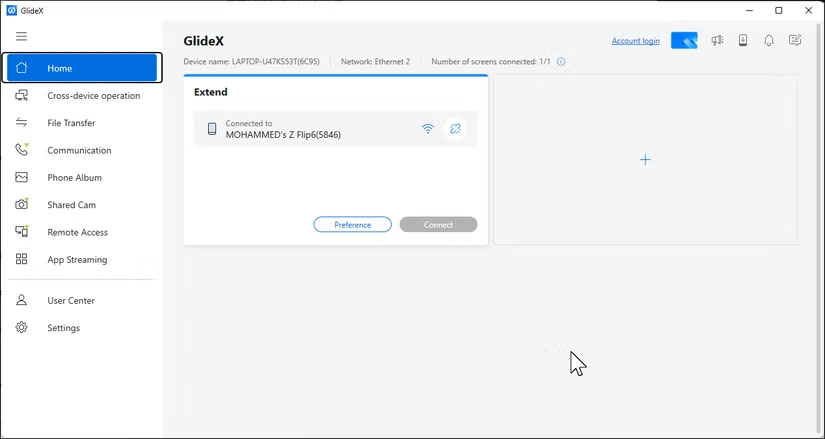
GlideX is a multi-device utility that lets you connect your Android, iPhone, or iPad to your Windows PC using Wi-Fi or USB. The app handles the basics like file transfers and screen mirroring, but the real draw is the Extend feature, which turns your phone or tablet into a second monitor for your computer. GlideX also supports PC-to-PC extension, meaning you can use another Windows PC or Mac as an additional display.
If you have an ASUS laptop, there's a GlideX Exclusive edition that unlocks advanced features. It lets you connect up to two devices at once and enjoy 2K resolution at 60Hz, compared to the standard 1080p 60Hz limit and only one device connection. The Exclusive edition also includes remote access and camera sharing. However, the standard edition offers everything most people need for a full extended display experience.
Setting up GlideX is incredibly easy. Download the GlideX app on your Windows PC from the Microsoft Store and install the companion app on your Android or iOS device. Launch both apps and make sure your devices are connected to the same Wi-Fi network or connect them via USB cable.
To connect USB on Android, you first need to enable Developer Options , then enable USB debugging. Once USB debugging is enabled, connect your devices via USB cable.
The application will automatically detect available devices. Click Start Now on your PC, then follow the on-screen instructions to pair the devices.
How to use your phone or tablet as an extended display
To use your phone or tablet as an extended display, open GlideX on your PC and navigate to the Cross-device operation tab. Under the Extend option, click Search for device . Your tablet or phone will appear in the list of available devices. Select it and you'll see a pop-up request to share your screen on your mobile device - click Accept to connect.
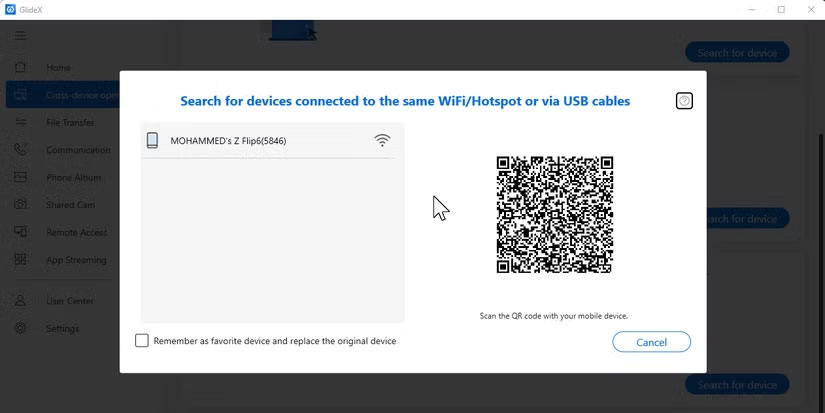
Once connected, your phone or tablet becomes an extension of your computer screen. You can launch apps on the main screen and move them to your mobile device, as well as switch between windows using Alt + Tab as you would on any regular screen. To disconnect, simply click the unlink icon next to the connected device.
Touchscreen support makes GlideX especially useful for tablets. You can tap, scroll, and pinch to zoom directly on the tablet screen — it responds just like a touchscreen laptop screen. This makes the screen perfect for reading documents, keeping an eye on a chat window, or keeping reference material visible while you work on the main screen.
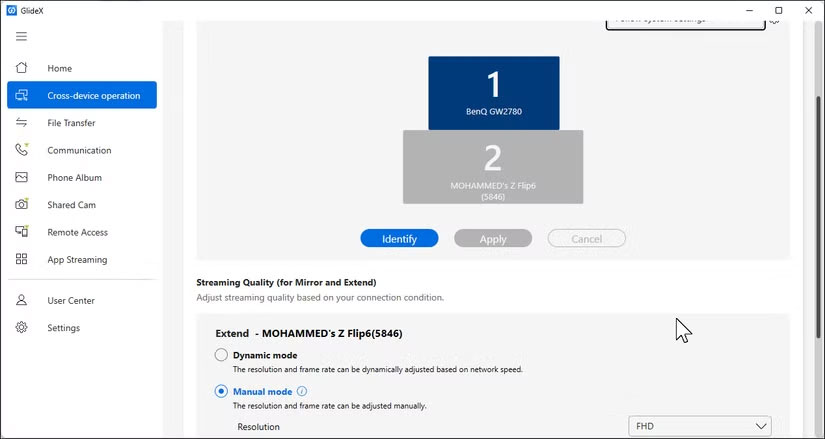
GlideX offers flexible display configuration options. Click the Preferences button to access display settings, where you can adjust the layout, resolution, and frame rate. Choose between Dynamic mode , which automatically adjusts quality based on network speed, or Manual mode for fixed settings. You can set resolutions up to FHD (1080p) and frame rates up to 60 FPS, depending on the quality of your connection.
What sets GlideX apart from similar solutions is its flexibility. You can continue to use your phone as normal without disconnecting the extended display. Just switch between apps on your mobile device and when you need the extended display again, switch back to GlideX.
GlideX can do so much more!
In addition to extending your screen, GlideX has a bunch of useful features that help you work more efficiently across multiple devices. You can mirror your phone screen to your PC, or use Unify Control to link your phone, tablet, and even another PC, allowing you to control it all with just one keyboard and mouse, and move your cursor smoothly between screens.
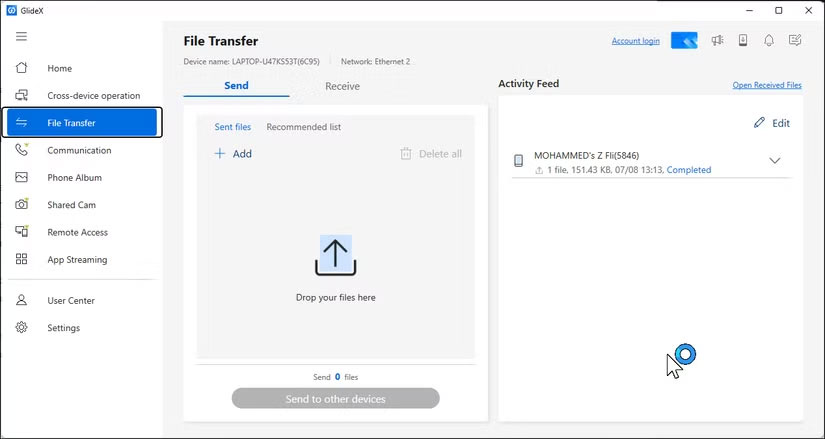
Sharing files is just as easy with File Transfer . Drag and drop files into the transfer window, and they instantly appear on your other devices. The Activity Feed tracks all transfers, showing file names, sizes, and quick status updates.
When you need quick access to photos, Phone Album works similarly to Phone Link's Photos feature, allowing you to browse and view all the photos stored on your phone using your PC. You can also download multiple files at once or delete them to free up storage space.
The Exclusive Edition also adds a few practical extras. Communication lets you make and receive phone calls through your PC's speakers and microphone. Shared Cam turns your phone into a webcam for video calls in apps like ZOOM or Skype. Finally, Remote Access lets you use your ASUS PC as personal cloud storage, giving you access to files from anywhere on your phone or tablet.
Whether you need a quick secondary display to work on a spreadsheet, want to keep your messaging app visible while you work, or simply need to move files between devices, GlideX handles it all through a clean interface. While it's no substitute for using Phone Link to connect your phone and PC, especially if you don't have an ASUS computer, it's a simple way to expand your setup without spending extra money.
FAQ
What should you know about learn about GlideX and how to set it up?
GlideX is a multi-device utility that lets you connect your Android, iPhone, or iPad to your Windows PC using Wi-Fi or USB. The app handles the basics like file transfers and screen mirroring, but the real draw is the Extend feature, which turns your phone or tablet into a second monitor for your computer. GlideX also supports.
How to use your phone or tablet as an extended display?
To use your phone or tablet as an extended display, open GlideX on your PC and navigate to the Cross-device operation tab. Under the Extend option, click Search for device. Your tablet or phone will appear in the list of available devices. Select it and you'll see a pop-up request to share your screen on your mobile device -.
What should you know about glideX can do so much more!?
In addition to extending your screen, GlideX has a bunch of useful features that help you work more efficiently across multiple devices. You can mirror your phone screen to your PC, or use Unify Control to link your phone, tablet, and even another PC, allowing you to control it all with just one keyboard and mouse, and move.
Related Articles
 Download Apowersoft Screen Recorder Pro, a $ 40 High-quality Screen3 minutes read
 Please See the Video Experience of the Folding Screen Tablet, Maybe Xiaomi3 minutes read
 5 Cheapest 10-inch Tablets in Vietnam5 minutes read
 The World's First Scrollable Tablet Can Fit in Your Pocket3 minutes read
 How to Turn Off Your Android Phone Screen Using the Smart Screen on6 minutes read
 Tablet Screen Won't Turn On?12 minutes read
Reader Comments 0
Sign in with email or Google to join the discussion.