Table of Contents
This guide covers dell latitude e6500 is powerful and elegant with practical context and easy-to-follow details. Use it to understand the subject and apply the information confidently.
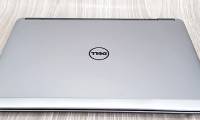
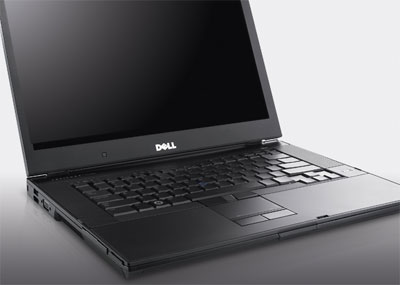 Dell Latitude E6500 with elegant black shell and solid.
The magnesium alloy case makes the E6500 look more durable and durable than many of its predecessors. When testing the product's durability by fighting it hard against the palm rest under the keyboard, it still feels unharmed. A weakness in the design of the Dell E6500 is that the enclosure covers the large LCD screen that is easy to dust. The part that locks the screen to the base does not lie in the middle, but to the right. When the device is folded, a small part on the left is still open. Compared to the Thinkpad W500 and D610, the E6500's keyboard design is slightly worse because of the lack of function buttons such as menu, print, num clock and pause, although there is plenty of room to add these keys. The manufacturer has overcome by integrating Fn + F11 instead of the print button. In addition, another disadvantage is that the keyboard is quite low compared to the armrest, so it is inconvenient for typing. Trackpad is compact, beautiful and quite comfortable for users. Part of the mouse button select creates a slight select without having to apply a lot of finger force like many other laptops.
 The part that surrounds the LCD can be inserted into the ATM card.
The speaker is located on the side of the keyboard, but the tone is not as good as Dell's previous D610. Moreover, the structure of the speaker is very difficult to clean. The screen of the Dell E6500 supports the standard WUXGA resolution (1, 920 x 1, 200 pixels) so the display colors are perfect. Due to the high resolution, the screen's maximum brightness can cause eye discomfort. Therefore, for normal use, you should leave the brightness level at 60%. The wide-format screen doesn't seem to be suitable for business models as it is more suitable for entertainment utilities such as watching movies and office operations such as Word processing, displaying documents is a bit inconvenient. In addition, the adapter unit is very convenient because of its small size and light weight - only about 0. 3 kg compared to 0. 42 kg on older models. Including the adapter, the E6500 weighs about 2. 7 kg, which is consistent with the 15. 4-inch screen size of the device.
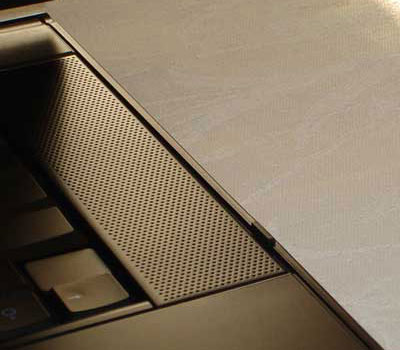 The speaker is located on both sides of the keyboard and is designed as a net so it is difficult to clean.
Compared to the "brother" E6400, the E6500 has not been equipped with a TV-out port. In addition, the location of audio and USB ports is not suitable as you will not be able to simultaneously plug in headphones and mice. If one of these ports is moved to the empty front, it will be much better. The device has a total of 4 USB ports, including one with integrated eSata connection. In addition, equipped with PowerShare USB enables you to charge other devices as soon as the device is turned off. The E6500 handles smoothly when running many basic apps like OpenOffice, GIMP, Opera and Firefox browsers. However, it has some problems using Vista operating system because the components are turned on and off continuously. Reboot times. In addition, when running VirtualBox virtual PC creation program, Dell D610 uses 2 GHz Sonoma CPU slightly. The E6500 successfully accomplishes noise reduction as well as temperature release. The software measures the temperature of Prime95 for a parameter of 78 degrees C when it is operated continuously for 2 hours. The fan cooling unit also did not roar, only the hard drive when the operation made a small vibration and made the user feel uncomfortable if he placed his hand on the keyboard. The included DVD optical drive does not vibrate much when operating. Experiment when leaving the screen in maximum brightness, turning on both Wi-Fi, Bluetooth, not running the speaker and giving the CPU 100% operation to watch the DVD, the battery for the device is about 97 minutes. With the same level of operation, but for screen brightness to be 50%, the CPU operates from 5 to 30%, the machine operates for 189 minutes. The device is being sold in the market for about 23. 8 million VND with a specific configuration: Core 2 Duo P8400 CPU, 4 GB DDR2 RAM, HDD 160 GB rotational speed 5, 400 per minute, NVIDIA Quadro NVS16OM discrete graphics card 256 MB, 15. 4 inch screen. Advantages: - High screen resolution (1, 920 x 1, 200 pixels), displaying beautiful colors. - Good heat dissipation system. - Has PowerShare USB port. - Good sound quality from speakers. - Lightweight slim charger. - Beautiful mouse cursor keys. Defect: - Keyboard lacks many important keys for laptops. - The weight is quite heavy (2. 7 kg). - Pretty sharp corners difficult to handle. - The hard drive rotates slightly. - Audio port location is not suitable.
FAQ
What should I check before following these steps?
Confirm device and software compatibility, save important data, and make sure you have the required permissions, files, and account access.
Why might the process not work?
Common causes include outdated software, missing permissions, incompatible hardware, an unstable connection, or completing a step in the wrong order.
Can I undo the changes if necessary?
That depends on the tool or setting. Use built-in restore options when available, keep a backup, and record the original configuration first.
Related Articles
 Dell 5450 Latitude Review: Secure, Fast and Elegant9 minutes read
 Dell Latitude 7400 Review: the Perfect Combination of Performance5 minutes read
 Dell Latitude E7240 Review: Excellent 12.5-inch Ultrabook7 minutes read
 Dell Introduced Latitude 2011, More Beautiful and Powerful4 minutes read
 Dell Latitude E7440 Review: Enduring Ultrabook with8 minutes read
 Dell Revealed the Latitude E4310: Not Much Improvement4 minutes read
Reader Comments 0
Sign in with email or Google to join the discussion.