Table of Contents
This practical guide walks through how to restore the Show Desktop Button on the Taskbar. It organizes the required steps, settings, and checks so you can complete the task with fewer mistakes.
To quickly return to the desktop, you can select the Show Desktop button in the lower right corner of the screen.
To prevent others from seeing private content on the computer, we can temporarily return to the desktop when 'someone' passes by. Several ways to do this. The most common way is to use the Show Desktop button in the lower right corner of the screen.
However, recently, many people have complained about the computer Losing the Show Desktop button on the Taskbar . If you also want to know where the Show Desktop button went, this is the article for you.
The Reason Why the Computer Loses the Show Desktop Button on the Taskbar
After updating to Win 11, many people have realized that the Show Desktop button has no wings but flies away. Although Several other alternative methods. However, the disappearance of familiar features on the computer also makes many people feel uncomfortable. Rest assured, the Show Desktop button has not been removed. Instead, it's just hidden in the settings. And of course, this is the reason why you cannot see the Show Desktop button in the familiar location.
How to Display the Show Desktop Button on the Windows 11 Taskbar?
As analyzed above, the Show Desktop button is not deleted, it is just hidden. And if it is hidden, we will have a way to help it reappear. Below, I shows you how to turn on the Show desktop button in Win 11. Start your computer and get ready to follow my instructions!
- Step 1 : Right-select the taskbar and select Taskbar settings .
- Step 2 : Next in the Personalization Section, tick the Select the far corner to show the desktop box . Immediately, your favorite feature appears in the window again.
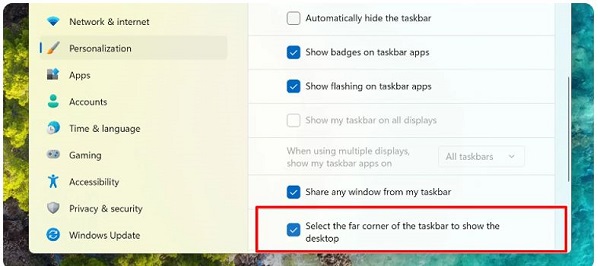
Display the Show Desktop Button on the Windows 10 Taskbar
In addition to Win 11, many Win 10 users also encounter the loss of the Show Desktop button. But even though they have the same symptoms, these two cases are quite different. If the Show Desktop button on Win 11 disappears, it is due to the operating system settings. On Win 10, this situation may be due to a software error or some other factor. If you cannot use the Show Desktop button on Windows 10, you can try this method.
- Step 1 : Right-select the taskbar and select Taskbar settings .
- Step 2 : In the settings window, find and tick the box Use Peek to Preview the desktop.
- Step 3 : Finally, try to see if you can use the Show Desktop button or not.
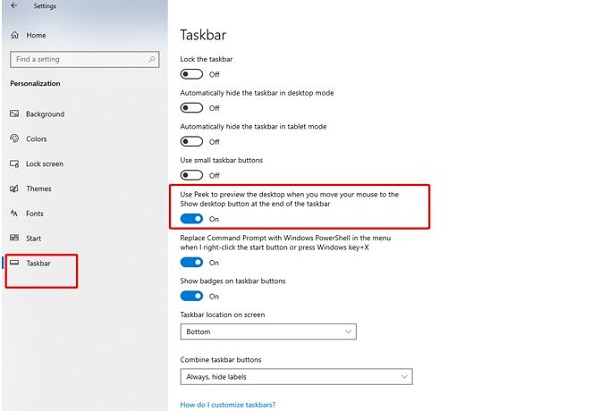
(This method will usually not be very effective. So if there really is no other way, you can consider installing Windows to solve the problem)
Alternatives When the Show Desktop Button Is Not Available
If you have tried following my instructions but still cannot use the Show Desktop button. Stay calm because there are actually many alternatives available to you. Specifically, you can select the Windows + D Key combination to quickly return to the desktop. Or if you want, you can also right-select the taskbar and select Show the desktop.

The Show Desktop button disappearing will bring a little discomfort to computer users. However, I find this is not a big problem and you can completely handle it with one of the ways I introduced above.
FAQ
What do I need before I restore the Show Desktop Button on the Taskbar?
Prepare the required device, software, account access, and any files mentioned in the steps. Back up important data before changing system settings.
Why does the process look different on my device?
Menus and options can vary by operating system, app version, device model, or region. Use the closest matching setting and check the official documentation when needed.
What should I do if a step does not work?
Restart the app or device, confirm permissions and connectivity, update the software, and repeat the step carefully. Avoid unofficial downloads or tools.
Related Articles
 How to Delete the Show Desktop Button on the Taskbar4 minutes read
 Customize the Taskbar3 minutes read
 Instructions to Hide Taskbar in 2 Steps3 minutes read
 How to Fix Icon Loss, Icon Error on Taskbar Windows 76 minutes read
 Steps to Recover Lost Taskbar Icon on Windows 106 minutes read
 How to Hide the 'Task View' Button on Windows 113 minutes read
Reader Comments 0
Sign in with email or Google to join the discussion.