Table of Contents
This step-by-step guide explains how to add netbook with thinkpad brand. It covers the required setup, the main actions, and the checks that help prevent common problems.
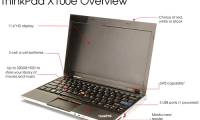
This is really another netbook from Lenovo's ThinkPad expansion similar to the X100e. This model owns 10 inch screen size 1, 024 x 600 pixel resolution with Intel Atom N450 processor chip at 1. 6GHz speed.
However, the sad thing is that this ThinkPad Mini 10 version has only been provided by Lenovo to a school in New South Wales, Australia.
Here are some real photos of this model.
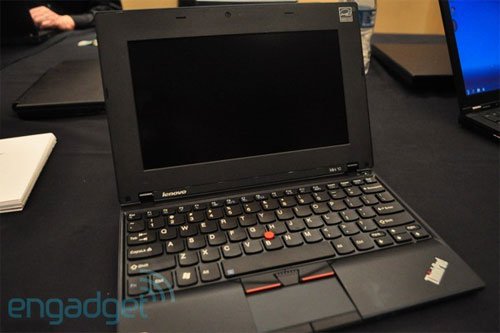 The screen of the screen is quite large.
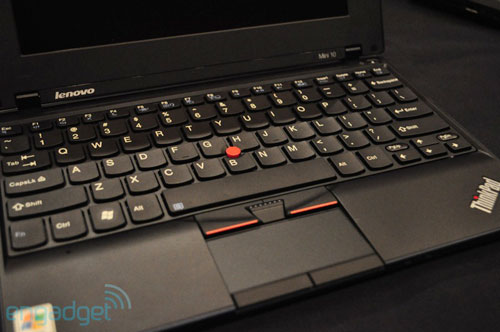 The keyboard is the same as the X100e and Edge models.
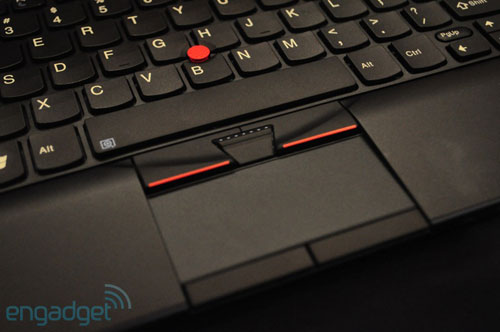 The touchpad is quite small.
 The battery is protruding behind.
 This model has a slim design.
 Upper surface with glossy plastic.
 Left side with 2 USB ports, LAN and headphone.
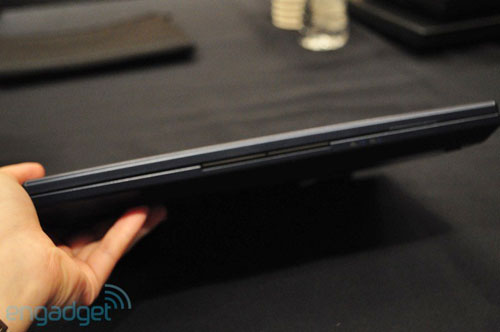 Front edge.
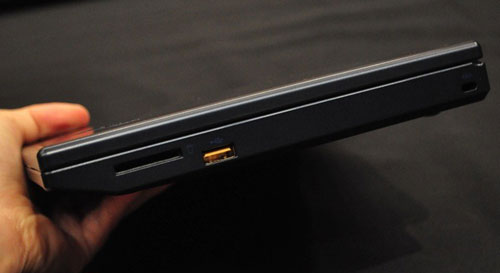 Right next to the memory card reader and USB port.
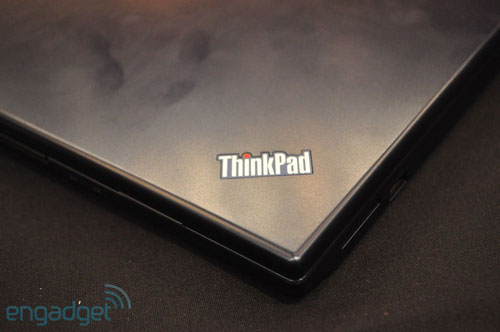 ThinkPad logo in a familiar position.
FAQ
What should I check before following these steps?
Confirm device and software compatibility, save important data, and make sure you have the required permissions, files, and account access.
Why might the process not work?
Common causes include outdated software, missing permissions, incompatible hardware, an unstable connection, or completing a step in the wrong order.
Can I undo the changes if necessary?
That depends on the tool or setting. Use built-in restore options when available, keep a backup, and record the original configuration first.
Related Articles
 Coming Soon with ThinkPad Netbook Equipped with WiMax3 minutes read
 Lenovo Introduces New ThinkPad Series, X1 Carbon Gen 3, ThinkVision X245 minutes read
 Details of ThinkPad Netbook from Photos3 minutes read
 ThinkPad X200 Costs Nearly $$ 2, 5004 minutes read
 Lenovo Launches New ThinkPad X1 Xtreme with 'Super Speed' Mode3 minutes read
 Lenovo ThinkPad X100e Is Not as Expected4 minutes read
Reader Comments 0
Sign in with email or Google to join the discussion.