Table of Contents
A virtual private network (VPN) creates an encrypted tunnel between a device and a VPN server. Consumer VPNs can reduce what a local network or internet provider sees, replace the public IP address shown to websites, and sometimes provide a different apparent location. Business VPNs are commonly used to reach private company systems remotely.
How a VPN connection works
Without a VPN, a device normally connects through the local network and internet provider directly to websites and online services. With a VPN, supported traffic first travels through an encrypted tunnel to the provider's server, then continues to its destination. The destination sees the VPN server's public IP rather than the device's normal public IP.
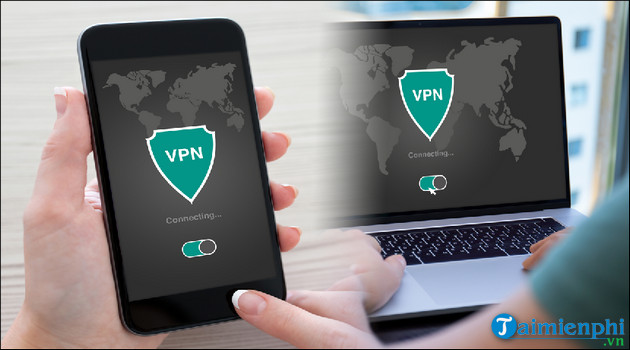
This protection has boundaries. The VPN provider can occupy a privileged position in the connection, signed-in websites still know the account being used, cookies and browser fingerprinting can continue, and a phishing page remains dangerous. HTTPS is still important.
When a VPN is useful
Connecting to a private work or school network
A remote-access VPN can let authorized users reach internal files, applications, and servers. Use the client and configuration supplied by the organization, and do not install an unapproved consumer VPN on a managed device.
Reducing exposure on an untrusted local network
A VPN can protect traffic on the path from the device to the VPN server. Modern HTTPS already encrypts website content, but a VPN can provide broader tunnel protection for supported apps and reduce the information visible to the local Wi-Fi operator.
Changing the public IP address
Websites normally see the VPN server's address and approximate location. This can be useful for testing how a site behaves in another region or reducing IP-based profiling. It does not provide complete anonymity or change the device's GPS location.
Working around poor network routing
Occasionally, a VPN route performs better than the internet provider's normal route. More often, encryption and extra distance keep speed similar or make it slower. A VPN cannot increase the bandwidth purchased from the provider or strengthen a weak Wi-Fi signal.
Advantages and trade-offs
| Potential benefit | Trade-off or limitation |
|---|---|
| Encrypts traffic to the VPN server | The VPN provider becomes another party that must be trusted |
| Hides the normal public IP from destination sites | Accounts, cookies, GPS, and browser fingerprints can still identify a user |
| Provides secure remote access to a private network | Incorrect configuration can block apps, printers, or local resources |
| May offer a server in another location | Some sites block VPN addresses or request extra verification |
| Can protect multiple apps with a system-wide tunnel | Latency may rise and battery use can increase on mobile devices |
When a VPN is not the answer
- Malware or phishing: use system updates, reputable security software, and careful link checking.
- Weak Wi-Fi: improve signal, reduce interference, or troubleshoot the router.
- Tracking by a signed-in service: review account privacy controls and browser permissions.
- Guaranteed streaming access: catalogs, licensing, and VPN blocking change; no provider can promise permanent access.
- Total anonymity: a VPN alone does not remove every identifier or log.
For a deeper technical overview, see TipsMake's VPN fundamentals. If performance is the concern, first identify whether the issue is DNS, Wi-Fi, routing, or bandwidth rather than assuming a VPN will speed it up.
How to choose a VPN service
- Define the purpose: remote work, public-network protection, travel, or testing a regional site.
- Read the privacy policy: check what connection and account data is collected, how long it is kept, and whether claims have been independently audited.
- Check platform coverage: confirm support for every device and the number of simultaneous connections.
- Review security features: look for a modern protocol, a clearly explained kill switch, leak protection, and prompt security updates.
- Understand the business model: a free service may limit data, speed, locations, or features. Avoid services that are vague about funding or data handling.
- Check cancellation terms: know the renewal price and how trials or refunds work.
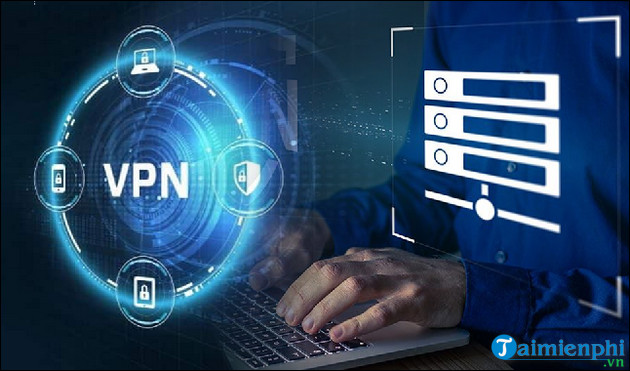
Compare TipsMake's lists of VPN services, free VPNs for computers and phones, and VPN extensions for Chrome. Remember that a browser extension normally protects only browser traffic, while a native VPN app can cover more of the device.
Practical setup checklist
Download the official app, verify the publisher, use a unique account password with two-factor authentication when available, enable the kill switch if traffic must stop on disconnect, and test the public IP before and after connecting. If a work VPN is involved, follow the administrator's instructions instead of changing protocols or server settings on your own.
Related Articles
 10 Dreadful Situations That Are Difficult to Understand Everyone4 minutes read
 Avoid Irony Situations on Facebook19 minutes read
 18 Funny Situations That Most Young Fathers Have Gone Through2 minutes read
 How to Fix the 'Light Feeling' Situations of Laptop12 minutes read
 10 Situations Where You Shouldn't Use ChatGPT6 minutes read
 9 Essential Tips Can Save You in Emergencies5 minutes read
Reader Comments 0
Sign in with email or Google to join the discussion.