Table of Contents
This article provides a clear overview of Netflix Party: How to Sync Movies to Watch Simultaneously, with the main facts, useful context, and practical details organized for easy reading.

Netflix Party comes at a time when countries around the world are urging social distancing and self-quarantine as methods to stem the novel coronavirus. The sudden and severe lack of socializing puts a particular strain on children who have been removed removed from school and on people who live alone. (Here's everything you need to know about staying healthy, educated and sane during the COVID-19 pandemic.)
Netflix Party helps bridge the gap by letting you and your friends simultaneously stream shows and movies on your desktop. It also allows anyone in the invited group to pause, play, fast forward and rewind the movies, so you're always on the same time frame. There's also a side chat bar where you and your friends can discuss what's going on in the movie -- much like you would if you were sitting together on the couch. We reached out to see how many people can join your party at a time, but Netflix Party didn't respond.
Read on for how to download, install and use the Netflix Party extension to sync your movie-watching with family and friends.
Everyone in Your Group Needs a Netflix Account
In order for this to work, everyone you send an invite to will need to have access to Netflix. If they don't have an account, Netflix is offering a free 30-day trial for new subscribers. If they're not a new subscriber, they can reactivate their account for $9 a month and cancel at any time.
Download the Google Extension
After everyone has signed up for Netflix or logged in on their computers, they'll need to download the Netflix Party extension. Here's how.
1. Visit netflixparty. com on your Google Chrome browser.
2. Click Get Netflix Party for free .
3. You'll be redirected to the Google Chrome web store page to download the extension. Click Add to Chrome .
4. A pop-up box will open. Select Add Extension . You'll now see a grey NP icon in your browser toolbar.
Start Watching Movies with Friends
Now that you've got the extension downloaded, you can begin watching shows and movies with your friends and family. Here's how to get started.
1. Open a new tab in your Google Chrome browser and log in to Netflix.
2. Find a show or movie you'd like to watch and click it.
3. You'll now see that the NP (Netflix Party) icon has changed from grey to red. Click the icon and select Start the party . You'll become the host, so you can either select the option for you to be the only controller for pausing and playing the show, or you can let anyone take control.
4. Copy the URL from the pop-up box and send it to everyone you may need to invite to the group.
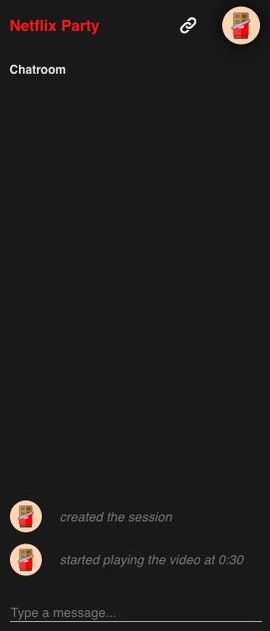
5. The chatroom will appear on the right side of the screen. From there, you'll be able to see when someone joins the party.
6. Now you can laugh, cry and howl with your family and friends, and feel a little less on your own.
Need more things to do during this time of social distancing? Here's free entertainment to help you survive coronavirus social distancing, 7 free video chat apps to use if you're social distancing and ways you can help during the coronavirus pandemic.
FAQ
What is the main focus of Netflix Party: How to Sync Movies to Watch Simultaneously?
The article explains the most important facts, context, and practical details related to Netflix Party: How to Sync Movies to Watch Simultaneously.
Who may find this information useful?
It is useful for readers who want a clear overview, practical context, and a better understanding of the subject.
What should readers verify before taking action?
Check current product versions, official requirements, regional availability, and any details that may have changed since the original publication.
Related Articles
 How to Use Netflix Party to Watch Movies at the Exact Same5 minutes read
 Netflix Party: How to Play and Pause Movies Simultaneously5 minutes read
 If You Haven't Tried Netflix Party to Watch Movies with5 minutes read
 Top Netflix Movies of All Time, Constantly Updated11 minutes read
 How to Watch Netflix Videos at the Same Time with Remote Friends4 minutes read
 Top 8 Best Movies on Netflix 20206 minutes read
Reader Comments 0
Sign in with email or Google to join the discussion.