What you will learn
- Navigate the Windows Logs and Applications and Services Logs structure.
- Filter a log by time, level, source and event ID.
- Correlate an event with a recorded symptom instead of treating every error as causal.
- Save or export a small set of relevant events for support.
What you need
- A Windows PC.
- A recorded symptom timestamp or a harmless test action.
- Permission to view logs; administrator access may expose more detail.
Treat Event Viewer as a timeline, not a health score
Microsoft presents Event Viewer as a built-in management console for viewing event logs. The main Windows logs include Application, Security, Setup, System and Forwarded Events, while applications and Windows components can publish their own channels.
Level labels—Critical, Error, Warning, Information and Verbose—describe the event, not the total health of the PC. An application crash can generate one event for the crash and several secondary warnings. A network service can log an error during shutdown even though normal operation is unaffected.
Filter around a known symptom window
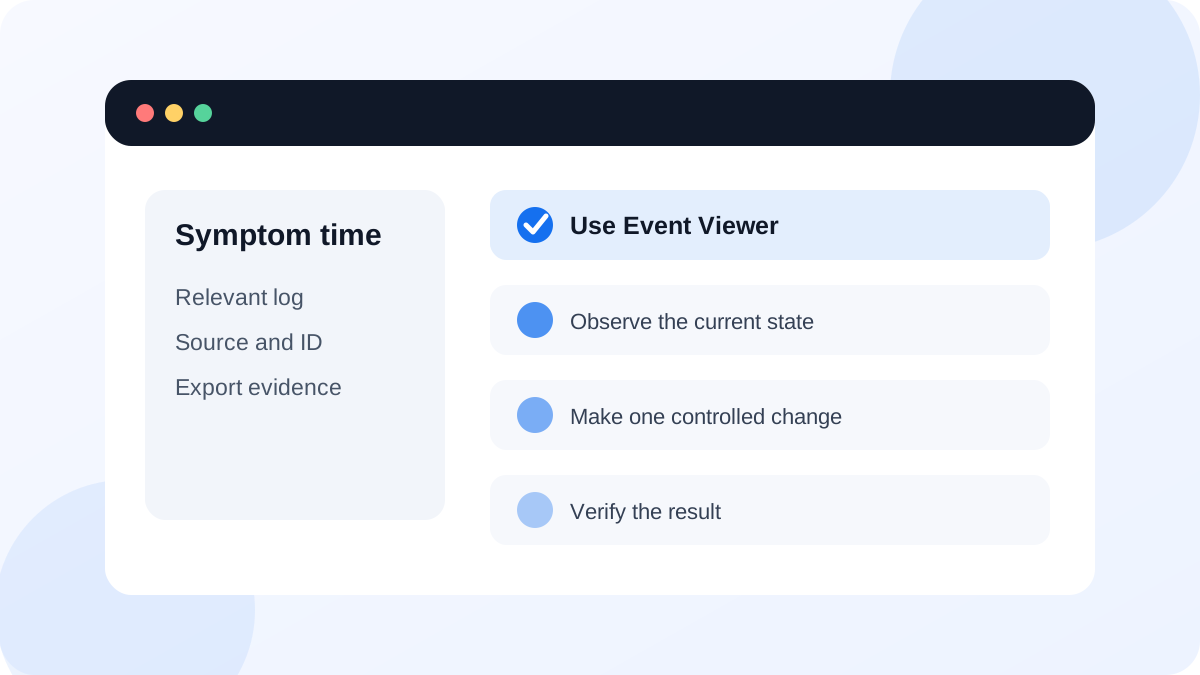
Open Event Viewer from the Start search or Windows Tools. If the symptom was a system restart, driver failure or service issue, begin with Windows Logs > System. If one application crashed, begin with Windows Logs > Application. Use Filter Current Log to narrow the time range and levels. Add a source or event ID only after observing a relevant candidate.
Select an event and read both General and Details. Record the source, event ID, level and timestamp. The General message can include a process, file, device or status code. Do not search only the event ID because the same number can mean different things under different sources.
- 1
Record the exact local time of a repeatable symptom or harmless test action.
- 2
Open Event Viewer and select the log most closely related to the component.
- 3
Choose Filter Current Log and restrict the time window around the symptom.
- 4
Inspect events from a few minutes before through a few minutes after the symptom.
- 5
Record source, event ID, level, timestamp and the relevant General text.
- 6
Repeat the symptom once, if safe, and check whether the same event pattern returns.
Build correlation before claiming causation
A relevant event should match the time, component and repeated behavior. If an event occurs every day on healthy PCs or appears long before the symptom, it is weak evidence. Check whether the source belongs to the affected application, driver or service and whether the event message describes the same operation that failed.
Microsoft's Inside series on Event Viewer emphasizes using log structure and event details to investigate Windows behavior. Reliability Monitor can provide a simpler day-by-day view of application failures and updates before you dive into raw logs.
- The investigation begins with a symptom timestamp.
- The selected log matches the application, system, setup or security context.
- Source and event ID are recorded together.
- A candidate event repeats with the symptom or has another strong contextual link.
- Normal historical errors outside the time window are not presented as the cause.
Export a focused evidence set
Use Save Selected Events or Save All Events in Custom View only after filtering. An .evtx file preserves structured details for Windows tools, while copied General text is easier for a short support message. Include your incident record and Windows build so the recipient knows why the events were selected.
Event logs can contain computer names, user names, paths, network details and security information. Share them only with trusted support and apply organizational policy. Do not clear logs to make the dashboard look clean; clearing destroys history and can complicate security or reliability investigations.
Correlate one event with one controlled action
Generate a harmless, known action and use its time to practice filtering and recording events.
- 1
Record the time, then open and close a normal application or perform another harmless action.
- 2
Open the relevant Application or System log.
- 3
Filter to a narrow time window.
- 4
Record one event's source, ID, level and message.
- 5
Explain whether the event is truly related, merely nearby or unrelated, and save only the useful evidence.
Common mistakes to avoid
- Treating the number of red icons as a PC health score.
- Searching an event ID without its source and Windows context.
- Changing services or registry settings from an event-ID website before proving relevance.
- Clearing logs before an issue is understood or exported.
Key takeaways
- Event Viewer is most useful when anchored to a precise symptom time.
- Source, event ID, message and repetition must be interpreted together.
- Export a focused, privacy-aware evidence set rather than an entire unexplained log.
Frequently asked questions
Why does a healthy PC have many errors in Event Viewer?
Windows logs recoverable failures, optional components and transient conditions. Relevance depends on timing, source, repetition and connection to a real symptom.
Should I clear Event Viewer after fixing a problem?
Usually no. Historical logs help confirm whether an event returns. Clearing can also remove useful reliability or security evidence.
Sources and further reading
- System configuration tools in WindowsMicrosoft Support
- Inside Event ViewerMicrosoft Learn
Ready to continue?
Mark the lesson complete so your Learning Path progress stays current on this device.