What you will learn
- Prepare and run Windows Memory Diagnostic without losing work.
- Locate the diagnostic result after restart.
- Interpret a detected error or clean result conservatively.
- Decide when hardware service or deeper testing is justified.
What you need
- A verified backup if the system is highly unstable.
- Time for an unattended restart and diagnostic pass.
- Administrator access may be required on some systems.
Decide whether memory is a relevant hypothesis
Memory testing is relevant when crashes occur under RAM-heavy workloads, stop codes vary, file decompression or compilation produces inconsistent errors, or instability began after memory installation or firmware tuning. A single slow application is not enough by itself.
Microsoft's blue-screen guidance includes Windows Memory Diagnostic as one advanced check and recommends correlating results with Event Viewer and other crash evidence. The tool is part of a wider process, not a standalone root-cause engine.
Prepare for the restart and run the built-in diagnostic
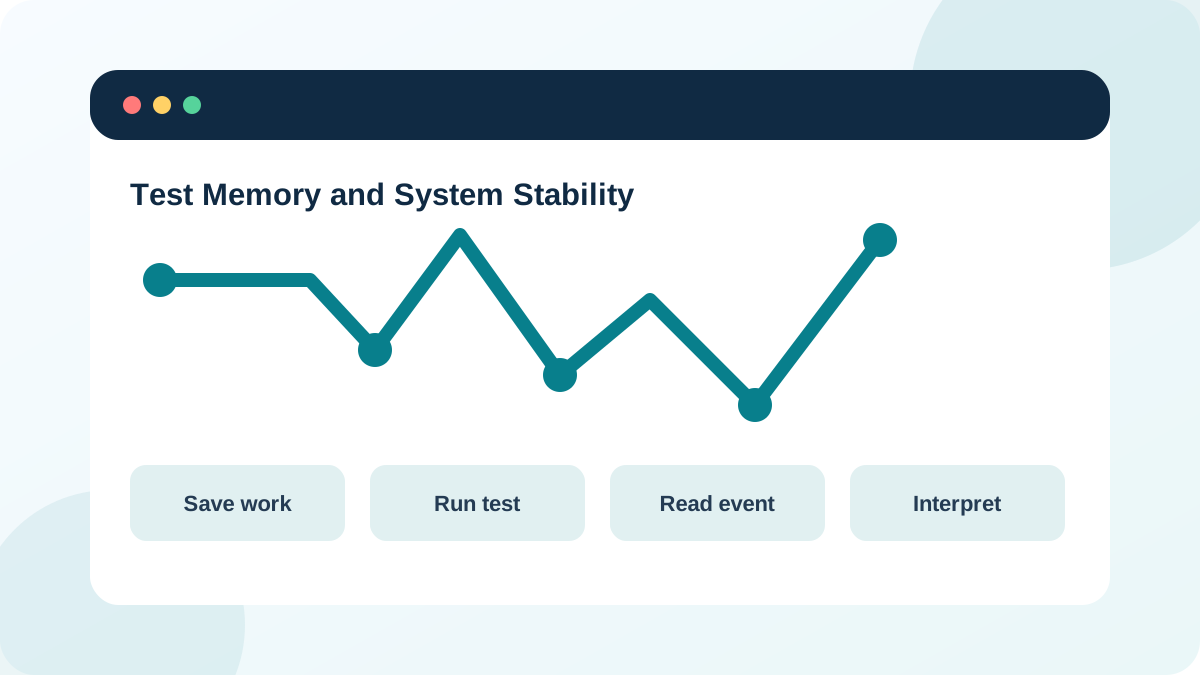
Microsoft documents launching Windows Memory Diagnostic with mdsched and choosing 'Restart now and check for problems.' The test runs before Windows loads and restarts the device when complete.
Save all work, close applications and disconnect unnecessary external devices. Return firmware memory settings to vendor defaults before interpreting instability caused by overclocking or custom timings, but do not change BIOS settings unless you understand the device-specific process.
- 1
Back up current work and close every application.
- 2
Press Windows + R, type mdsched.exe and press Enter.
- 3
Choose Restart now and check for problems.
- 4
Allow the standard test to complete without forcing power off.
- 5
Sign in after Windows restarts.
- 6
Wait for the notification or open Event Viewer to locate the result.
Find and preserve the result
If the notification disappears, open Event Viewer and search the System log for MemoryDiagnostics-Results around the test time. Record the event level, message and timestamp. Do not rely on memory of a brief notification.
A detected problem is strong evidence of instability but does not alone identify which module, slot, controller setting or motherboard condition caused it. A clean result means this pass did not detect an error; intermittent faults can remain.
- 1
Open Event Viewer after sign-in.
- 2
Select Windows Logs > System.
- 3
Filter or search for MemoryDiagnostics-Results.
- 4
Open the event matching the test timestamp.
- 5
Copy the result text into the troubleshooting record.
- 6
Keep the crash and workload evidence beside the diagnostic result.
Interpret the result with configuration and workload context
If errors are detected, stop memory-intensive work that could corrupt files and verify backups. Note whether memory was recently added, whether modules are matched, and whether firmware uses default settings. On a warranty device, contact the manufacturer before opening it. Qualified technicians can test modules and slots individually using vendor procedures.
If no errors are detected, repeat the original workload and continue investigating drivers, storage, thermals and power. Do not run endless passes while the machine is overheating or storage is failing.
- The test completed without forced shutdown.
- The exact Event Viewer result and time were recorded.
- Firmware or memory changes are documented.
- A clean result is described as 'no errors detected in this run,' not proof of perfect memory.
Escalate physical memory work safely
Opening a laptop can damage clips, void service terms or expose a swollen battery. Static discharge can damage components. If you are not trained, use manufacturer service. Desktop memory reseating also requires complete shutdown, power removal and anti-static precautions.
Repeated memory errors, inability to complete the test, crashes during backup or visible physical damage justify professional assessment.
Document one memory diagnostic run
Run the built-in test only on a safely backed-up device and create an evidence record.
- 1
Write why memory is a relevant hypothesis.
- 2
Save work and launch mdsched.exe.
- 3
Allow the standard test to finish.
- 4
Find MemoryDiagnostics-Results in Event Viewer.
- 5
Record the exact result and timestamp.
- 6
Write the next step for both possible outcomes.
Common mistakes to avoid
- Treating a clean pass as proof memory can never fail.
- Replacing RAM solely because one crash code contains the word memory.
- Running repeated tests while the PC overheats or the drive loses data.
- Opening a laptop without warranty, battery and static-safety considerations.
Key takeaways
- Memory testing begins with a relevant symptom pattern.
- Preserve the Event Viewer result, not only the notification.
- Detected errors require backup and controlled hardware assessment.
Frequently asked questions
Does a clean Windows Memory Diagnostic result rule out RAM?
No. It means the test did not detect an error during that run. Intermittent faults or other instability can require deeper controlled testing.
Should I select Extended mode immediately?
Begin with the supported standard test. Longer testing may help in specialist workflows, but do not prolong testing when the device shows heat, power or storage risk.
Sources and further reading
- Resolving Blue Screen errors in WindowsMicrosoft Support
- How to fix Error 0xA: IRQL_not_less_or_equalMicrosoft Support
- All about computer memoryMicrosoft Support
Ready to continue?
Mark the lesson complete so your Learning Path progress stays current on this device.