What you will learn
- Measure a consistent sign-in-to-usable-desktop time.
- Identify user startup applications and their reported impact.
- Disable and restore startup items safely.
- Use clean boot only as a temporary software-conflict isolation method.
What you need
- A Windows PC with slow sign-in or a busy first few minutes.
- Administrator access only if a clean boot becomes necessary.
- A written list of apps that must be available immediately after sign-in.
Separate startup apps from services and background activity
Windows provides a Startup apps page in Settings and a Startup apps view in Task Manager. These control applications configured to start when the user signs in; they are not a complete list of Windows services or scheduled tasks.
A cloud-sync client, password manager, security tool, touchpad utility or accessibility app may be important immediately. A game launcher, meeting app or updater may be safe to start manually. Judge each item by function, publisher and user need—not by impact label alone.
Measure sign-in before changing the list
Choose a consistent test: restart, sign in with the same account, and stop the timer when the desktop responds and the main task can begin. Do not count only the moment the wallpaper appears. Record network state and whether updates are pending because both can affect the first session after restart.
Open Task Manager > Startup apps. Record enabled items, publisher and startup impact. If an item is unfamiliar, inspect its properties or official publisher documentation. Do not disable security software, storage drivers, input-device software or corporate management tools without authorization.
- 1
Save work and restart Windows.
- 2
Start a timer when you submit the sign-in credential.
- 3
Stop when the desktop and one chosen app respond normally.
- 4
Repeat once and record both times.
- 5
Open Task Manager > Startup apps and export or screenshot the enabled list.
- 6
Mark each item essential now, useful later or unknown.
Disable nonessential items in small batches
Microsoft's performance guidance recommends reviewing startup apps, and its clean-boot procedure uses systematic disable-and-reenable testing to isolate conflicts. The same cause-and-effect principle applies to ordinary startup optimization.
Begin with one or two clearly nonessential user applications. Disable them through Settings > Apps > Startup or Task Manager > Startup apps. Restart rather than signing out so the test includes the same boot path. Confirm required functions, notifications and device controls still work.
- 1
Select one or two nonessential apps with a clear publisher.
- 2
Record their current Enabled state and startup impact.
- 3
Disable them without uninstalling the applications.
- 4
Restart and repeat the same timing test twice.
- 5
Open each disabled app manually to confirm it still works.
- 6
Re-enable an item immediately if a required function disappears.
Decide whether the change produced a real improvement
Compare the median or repeated times, not the best single restart. A difference of a few seconds may be normal variation. Also compare the first five minutes: resource usage, fan activity and responsiveness. If the desktop appears sooner but sync or security initialization is merely delayed, the user experience may not actually improve.
If no item explains the delay, check pending updates, storage pressure, user profile issues and system performance. A clean boot is a diagnostic environment for isolating third-party service conflicts; it requires careful restoration and should not become a permanent 'optimized' mode.
- The same account and timer definition were used for every restart.
- Required security, sync, input and accessibility functions still work.
- Disabled applications still launch manually.
- The change improved repeated timings or was reverted.
Use clean boot only when a conflict is suspected
Microsoft describes clean boot as starting Windows with essential drivers and startup programs so background software conflicts can be isolated. The documented process includes re-enabling items systematically and returning the computer to normal startup afterward.
Do not hide or disable Microsoft services incorrectly, and do not use clean boot while relying on unsupported instructions. On managed devices, involve IT. Record every changed checkbox so normal startup can be restored.
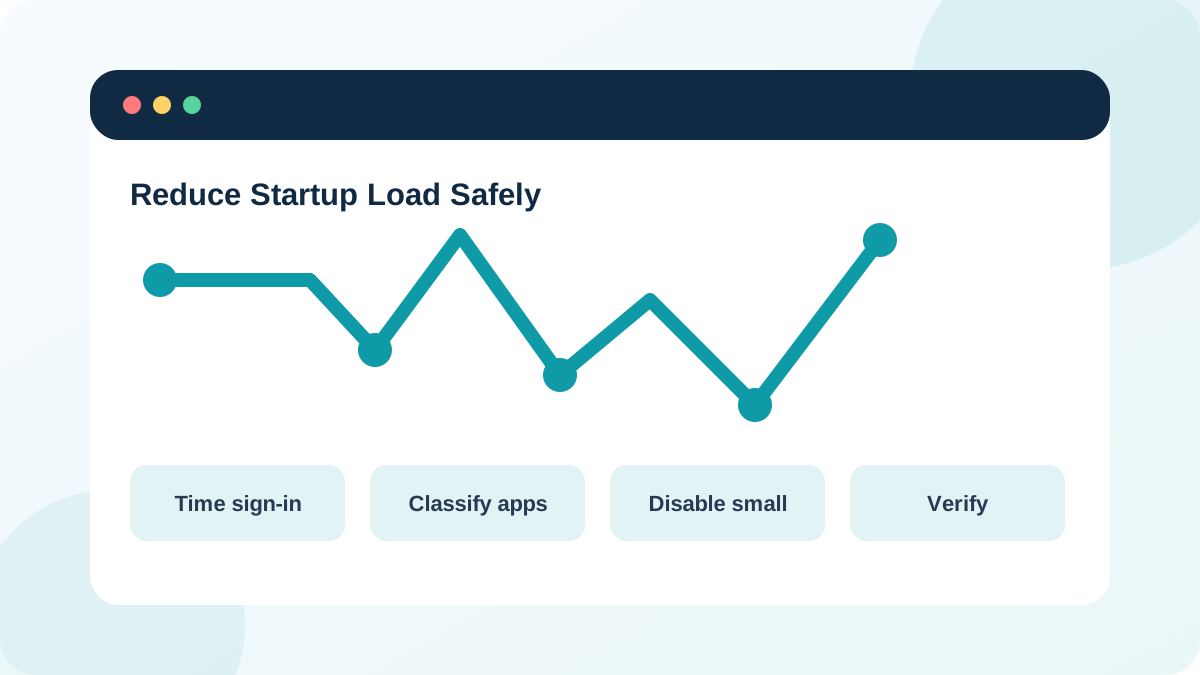
Run a two-item startup test
Measure the effect of disabling only clearly nonessential user applications.
- 1
Time two baseline restarts.
- 2
Classify enabled startup apps.
- 3
Disable one or two nonessential apps.
- 4
Time two more restarts.
- 5
Check required functions and manually open the disabled apps.
- 6
Keep the change only if the improvement is repeatable.
Common mistakes to avoid
- Disabling everything and losing cause-and-effect evidence.
- Treating a high-impact label as proof an app is unnecessary.
- Disabling security or hardware support software without understanding it.
- Leaving a clean-boot configuration active after diagnosis.
Key takeaways
- Measure sign-in to a genuinely usable state.
- Disable small, reversible groups of user applications.
- Clean boot is a temporary conflict-isolation tool.
Frequently asked questions
Does disabling a startup app uninstall it?
No. It prevents automatic launch at sign-in; you can still open the application manually and re-enable startup later.
Why did startup improve only once?
Updates, caching, network activity and background maintenance create variation. Use repeated tests under similar conditions before keeping a change.
Sources and further reading
- Configure startup applications in WindowsMicrosoft Support
- Tips to improve PC performance in WindowsMicrosoft Support
- How to perform a clean boot in WindowsMicrosoft Support
Ready to continue?
Mark the lesson complete so your Learning Path progress stays current on this device.