What you will learn
- Connect a boot failure to a specific recent change.
- Choose driver rollback, uninstall update or System Restore appropriately.
- Run one recovery action and verify normal startup.
- Avoid escalating to reset before lower-risk reversals are tested.
What you need
- A recent-change timeline and access to WinRE or Safe Mode.
- A verified backup and BitLocker recovery key.
- Reliable power during recovery.
Identify the last known good startup and the change after it
Record the last time Windows started normally, then list updates, drivers, applications, security tools and hardware changes made afterward. A precise timeline determines which reversal is relevant. If no recent change exists, System Restore or update uninstall may not be the right test.
Do not treat every item in update history as suspect. Match the installation timestamp to the first failure and check Microsoft release-health or vendor notes for known issues.
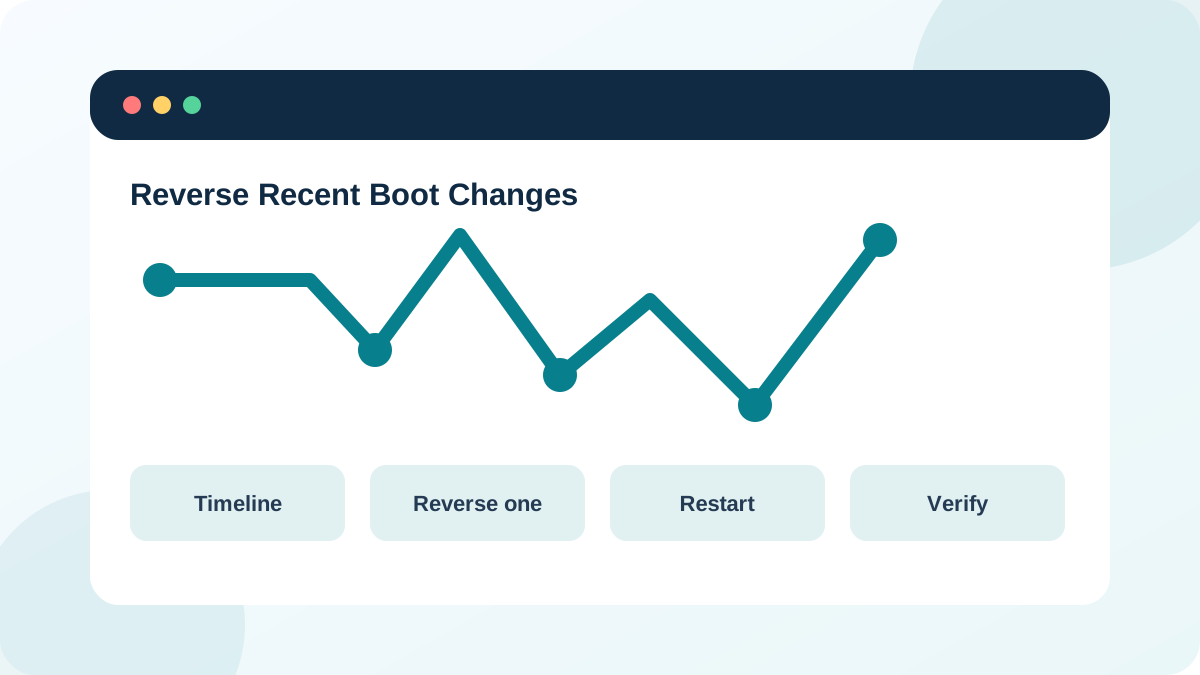
Uninstall a recent Windows update only when timing matches
Microsoft supports uninstalling a recent update through Settings or WinRE when the update is causing errors. In WinRE, Advanced options > Uninstall Updates can remove the latest quality or feature update depending on the available choices.
Begin with the narrowest applicable option. Record the update identifier before removal. After Windows starts, verify the original workload and review security implications. Do not pause all updates indefinitely; seek an updated fix or supported mitigation.
- 1
Confirm the failure began immediately after a Windows update.
- 2
Enter WinRE and open Troubleshoot > Advanced options > Uninstall Updates.
- 3
Choose the latest quality update before a broader feature rollback when appropriate.
- 4
Record the option selected and any update identifier shown.
- 5
Restart and test normal startup twice.
- 6
Check Windows Update and release-health guidance before returning the PC to service.
Use System Restore for recent system-state changes
System Restore applies a restore point to system files, registry settings, installed programs and drivers without targeting personal files. Microsoft supports running it from Windows or WinRE.
Review the restore point date and affected programs. System Restore is not a substitute for a file backup, and applications installed after the point may need reinstalling. Keep the device powered and do not interrupt the process.
- 1
Choose System Restore from WinRE Advanced options.
- 2
Select the Windows account and enter its password if required.
- 3
Choose a restore point before the first failed startup.
- 4
Use Scan for affected programs when available.
- 5
Confirm the target disk and start the restore.
- 6
After restart, verify Windows, applications and the original symptom.
Use Safe Mode for one driver or app reversal
If Safe Mode starts and the timeline identifies a recent device driver or application, roll back or uninstall only that item. Create or confirm the recovery path first. Restart normally and repeat the same startup test.
Avoid removing storage, chipset, encryption or network drivers based on generic lists. OEM recovery or specialist support may be safer when a critical driver is involved.
- The selected reversal predates the first failure.
- Only one update, restore point, driver or application changed.
- The device restarted normally at least twice.
- Security updates and required applications have a follow-up plan.
Escalate instead of stacking recovery actions
Microsoft's recovery-options guidance places Startup Repair, Uninstall Updates and System Restore before Reset or full reinstall for matching scenarios. Stacking several actions without testing loses the evidence and can complicate recovery.
If a reversal fails, return to the evidence: drive visibility, encryption status, exact error and logs. Preserve data before Reset or reinstall.
Build a boot-reversal decision card
Choose the least destructive action for a hypothetical or recent startup failure.
- 1
Write the last known good startup time.
- 2
List changes made afterward.
- 3
Select driver rollback, update uninstall or System Restore.
- 4
Write the backup and BitLocker prerequisites.
- 5
Define the post-recovery test.
- 6
Write the escalation point if the reversal fails.
Common mistakes to avoid
- Removing unrelated updates because they appear recent.
- Choosing a restore point after the first failure.
- Assuming System Restore is a personal-file backup.
- Escalating directly to Reset without testing a matched reversal.
Key takeaways
- The timeline determines the correct reversal.
- Use one recovery action and verify before another.
- Reset and reinstall are escalation steps after data protection.
Frequently asked questions
Will System Restore delete my documents?
It is designed to change system state rather than personal files, but every recovery operation carries risk; keep a verified file backup.
Can Windows reinstall the same problematic update?
Yes. Check current Microsoft guidance and release health, and use only temporary pause or managed controls while a supported fix is identified.
Sources and further reading
- How to uninstall a Windows UpdateMicrosoft Support
- System RestoreMicrosoft Support
- Recovery options in WindowsMicrosoft Support
Ready to continue?
Mark the lesson complete so your Learning Path progress stays current on this device.