Table of Contents
The “We couldn’t create a new partition or locate an existing one” message usually means Windows Setup cannot prepare the selected disk in the current boot and partition configuration. Start with non-destructive checks. Use DiskPart’s clean command only for an intentional clean installation because it removes every partition on the selected disk.
Before changing partitions
- Back up every file you need from the target disk.
- Confirm which physical disk is the installation target by model and capacity—not just by “Disk 0.”
- Save the BitLocker recovery key for any encrypted Windows installation.
- Connect the computer to power.
- If the installation should preserve apps or files, stop: the destructive steps below are not appropriate.
1. Disconnect unrelated storage
Shut the computer down and disconnect external hard drives, extra USB flash drives, memory cards, and unnecessary internal drives. Leave only the Windows installation USB and the target disk. This reduces the chance that Setup places boot files on the wrong disk or that you erase the wrong device.
There is normally no need to remove a keyboard, mouse, or essential USB network adapter. If an internal disk cannot be unplugged safely, a firmware setting may disable its controller or port, but menus vary by manufacturer.
2. Recreate the installation USB
A damaged ISO, incomplete write, or failing flash drive can produce inconsistent setup errors. Recreate the media with Microsoft’s official installation-media instructions. If the error continues, try a different USB drive and another direct USB port.
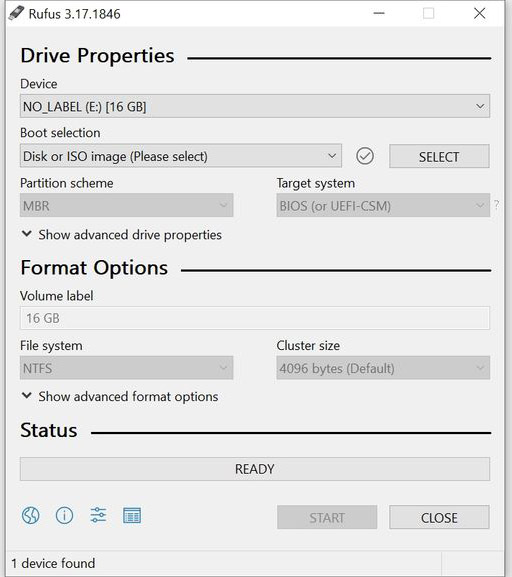
Rufus is useful when a specific UEFI layout is required. Match GPT with UEFI boot on a modern PC. TipsMake’s Windows installation guides include a current Rufus workflow and other boot-media help.
3. Boot the installer in the correct firmware mode
Open the one-time boot menu and choose the USB entry labeled UEFI for a modern Windows installation. Do not switch between UEFI and Legacy/CSM halfway through the process. Windows 11 should use UEFI with a GPT target disk.
If the target disk is missing entirely, this is a different problem. Check whether the SSD appears in firmware, reseat it if appropriate, and obtain the storage-controller driver from the PC or motherboard manufacturer. Intel VMD/RAID configurations may require a driver or a deliberate firmware-mode change; changing controller mode on an existing installation can make it unbootable.
4. Let Windows Setup create the required partitions
This erases the selected target disk. In Windows Setup, choose Custom: Install Windows only. On the drive-selection page:
- Identify the target disk by its capacity.
- Select each partition on that target disk and click Delete.
- Stop when the target disk shows one Unallocated Space entry.
- Select that unallocated space and click Next.
Do not delete partitions on any other disk. Windows Setup will create the EFI, Microsoft Reserved, recovery, and Windows partitions it needs. Manually creating one primary NTFS partition can omit required UEFI partitions.
5. Use DiskPart only when the Setup interface cannot reset the disk
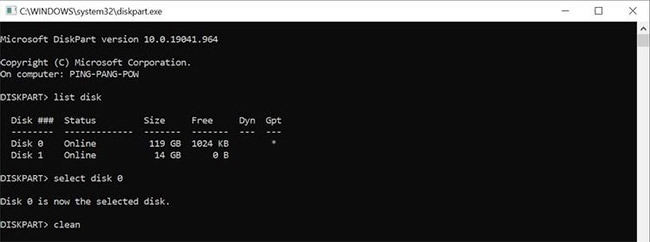
Warning: the following commands destroy the partition table and all data on the selected disk. Disconnect other storage first. At the Windows Setup screen, press Shift + F10 to open Command Prompt.
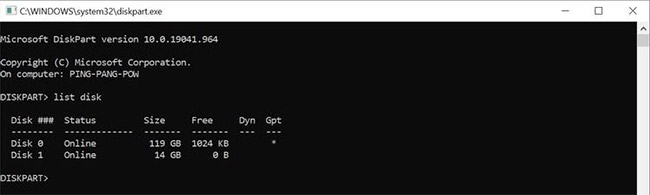
diskpart
list disk
select disk X
detail disk
Replace X with the correct disk number. Read detail disk and verify the model and capacity. If anything is uncertain, type exit and stop.
For an intentional UEFI/GPT clean installation:
clean
convert gpt
exit
Close Command Prompt, click Refresh in Setup, select the resulting unallocated space, and click Next. Do not add active; that flag is associated with legacy BIOS/MBR booting and is not part of a UEFI/GPT installation.
If the disk contains an installation you need to keep
Do not run clean. Boot the existing Windows installation or a recovery environment, make a verified backup, and diagnose the partition layout first. Microsoft’s MBR2GPT can convert certain eligible system disks without deleting data, but it has validation requirements and is not a substitute for a backup.
Follow Microsoft’s MBR/GPT installation guidance and, for a supported existing installation, the MBR2GPT documentation.
If the error remains
- Update the PC firmware from the manufacturer if a known storage issue applies.
- Load the correct storage-controller driver in Setup.
- Test the installation USB and target SSD for hardware errors.
- Return firmware storage and boot settings to a known-good supported configuration.
- Record the exact error text and any code; similar messages can have different causes.
The safest fix is the first one that restores a clear target disk without erasing anything unintended. A fresh installer, the correct UEFI boot entry, and one verified unallocated target disk resolve the common configuration cases.
Related Articles
 How to Fix 'We Couldn't Create a New Partition' Error in8 minutes read
 How to Fix 'We Couldn't Create a New Partition' Error in Windows8 minutes read
 This Is How to Delete Recovery Partition and Recovery Partition11 minutes read
 How to Fix 'Invalid Partition Table' Error on Windows2 minutes read
 Fix 'Setup Was Unable to Create a New System Partition or Locate4 minutes read
 How to Create a Recovery Partition to Customize Windows Recovery10 minutes read
Reader Comments 0
Sign in with email or Google to join the discussion.