What you will learn
- Distinguish SSID, Wi-Fi password and administrator password.
- Choose a unique network name without personal information.
- Create strong separate credentials.
- Plan a credential change without losing management access.
What you need
- Authorized access to the router administration interface.
- A list of important connected devices and a safe place to store credentials.
Separate the three identities
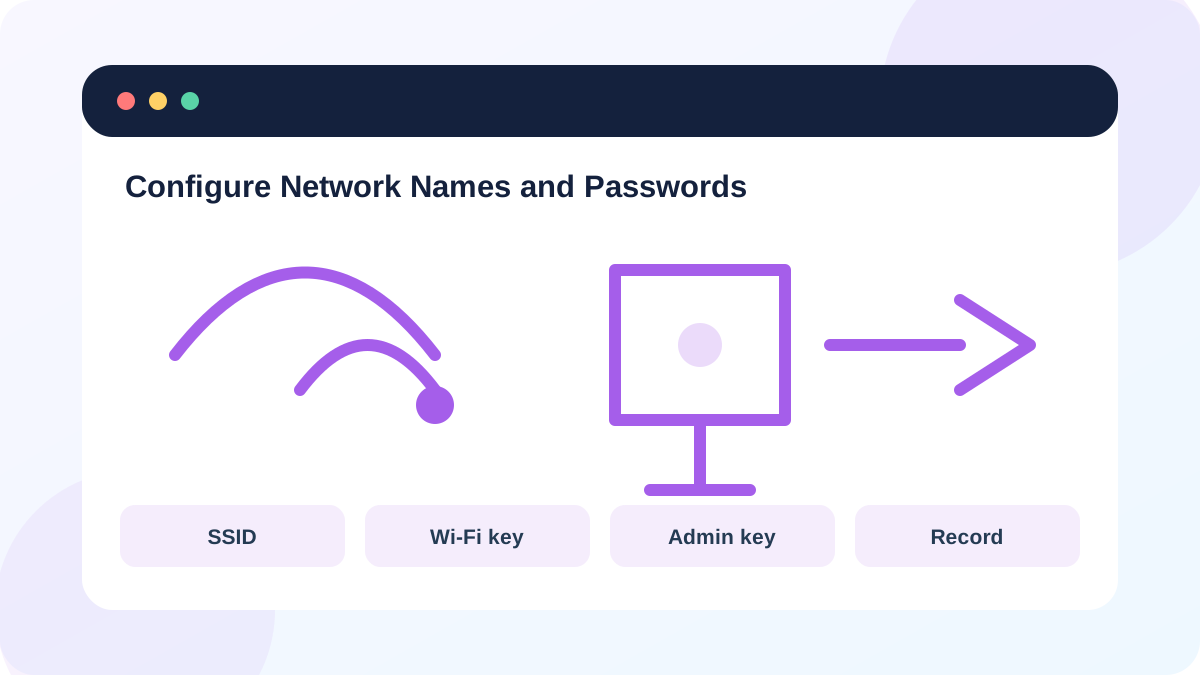
Apple defines the SSID as the case-sensitive name advertised to nearby devices and recommends a unique name rather than a common default such as a router brand.
The FTC distinguishes the Wi-Fi network password from the router administrator password and recommends changing both default values to unique credentials.
The SSID is visible by design, so it should not contain a surname, apartment number, phone number or business role. Hiding the SSID is not a substitute for encryption because the network can still be discovered through wireless management traffic.
Prepare before changing anything
Use Ethernet or keep one already-connected management device available. Record the current SSID, security mode and router address. Export a configuration backup if the vendor supports it, but protect the file because it may contain sensitive settings.
List devices that may require manual reconnection: printers, cameras, smart speakers, televisions and appliances. A credential change can appear to break them even though the network itself is healthy.
- 1
Confirm the router model and official administration instructions.
- 2
Record the current SSID and security mode.
- 3
Create a unique administrator password and store it in a password manager.
- 4
Create a separate long Wi-Fi password.
- 5
Schedule the change when interrupted devices will not create a safety or business problem.
Change the SSID and join password safely
Change one network at a time if the router exposes separate guest or IoT networks. Use WPA3 Personal where all devices support it, or WPA2/WPA3 transition mode for compatibility. Avoid WEP, WPA, TKIP and open networks.
After saving, reconnect the management device first. Verify that it receives an IP address, reaches the gateway and accesses the internet before reconnecting every other device.
- 1
Sign in locally to the router administration page.
- 2
Change the SSID to a unique neutral name.
- 3
Select the strongest compatible security mode.
- 4
Enter the new Wi-Fi password and save.
- 5
Reconnect the management device, then reconnect other devices in a documented order.
Verify credentials and recovery
Log out of the router and sign back in with the new administrator password. Confirm that the Wi-Fi password cannot open the administrator interface. Check that the old SSID is no longer being broadcast by an unused extender or second router.
If you lose access, do not factory-reset immediately. Try Ethernet, the official management app or another device already connected. A factory reset is the last resort because it can erase provider and network settings.
- The router admin password differs from the Wi-Fi password.
- The SSID contains no personal location or identity data.
- Important devices reconnect and receive valid addresses.
Create a credential-change runbook
Plan a safe network rename without performing it during the lesson.
- 1
List every SSID and its purpose.
- 2
List devices that would need reconnection.
- 3
Generate separate Wi-Fi and administrator credentials.
- 4
Write the verification order after the change.
- 5
Write recovery steps that precede a factory reset.
Common mistakes to avoid
- Using the same password for Wi-Fi and administration.
- Putting an address or surname in the SSID.
- Changing credentials without identifying smart devices.
- Factory-resetting after one failed login attempt.
Key takeaways
- SSID, Wi-Fi password and admin password are separate controls.
- Use unique strong credentials and modern encryption.
- Plan reconnection and recovery before saving changes.
Frequently asked questions
Does hiding the SSID secure the network?
No. It reduces casual visibility but does not replace authentication and encryption.
Should 2.4 GHz and 5 GHz use the same name?
For most modern networks, the same unique SSID helps devices choose and roam. Separate names can be useful for testing or incompatible devices.
Sources and further reading
- Recommended settings for Wi-Fi routers and access pointsApple Support
- How To Secure Your Home Wi-Fi NetworkFederal Trade Commission
Ready to continue?
Mark the lesson complete so your Learning Path progress stays current on this device.