Table of Contents
To login 2 Facebook accounts on galaxy s9 / s9 + successfully, begin with the right preparation and follow each step carefully. The guide also covers common issues you may encounter.
On the high-end Samsung series has added Dual Messenger feature. This feature helps you access 2 application accounts at the same time, such as logging 2 Facebook accounts, 2 Zalo accounts. Thus users can access accounts faster, without having to log out and then sign in to another account.
On Samsung Galaxy S9 / S9 +, Dual Messenger feature is still provided to users to make it easier for you to use 2 application accounts on the device. The steps below explain how to use Dual Messenger on Samsung S9 / S9 +.
- Summarize interesting tips on Galaxy S9 users should not ignore
- Galaxy S9 and S9 +: Things to know about this latest flagship of Samsung
- Create unique Emoji shapes on Samsung Galaxy S9
How to use the Dual Messenger S9 feature
Step 1:
At the device interface, click The Settings application icon and Then select the Advanced feature Setting.


Step 2:
In the advanced feature interface, click Dual Messenger . Features will support Facebook, Skype, Zalo, Viber and Messenger applications.
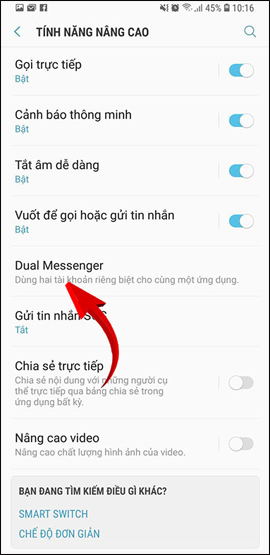
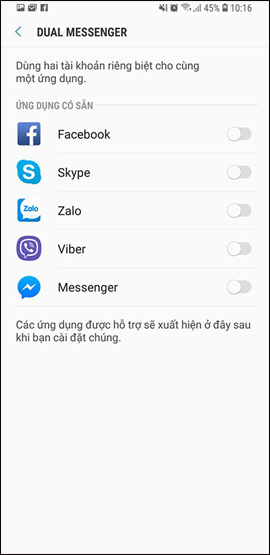
Step 3:
Click the app you want to use 2 accounts by swiping the horizontal bar to the right, such as the Facebook application. A message appears as shown below, press the Install button. Next to the interface appears a notification, click The Confirm button To agree to use.

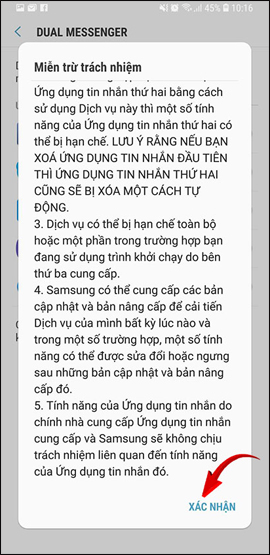
Step 4:
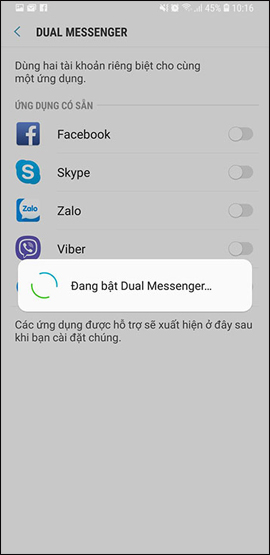
You wait for the Dual Messenger feature to activate on the device. Soon we will see the 2 applications icon appear on the device interface.
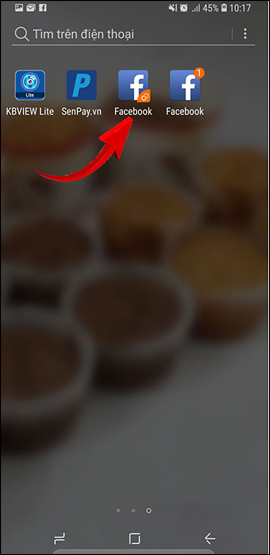
Now you just need to sign in 2 application accounts on S9 / S9 + to use and that's done. The interface of the newly created application as well as the interface of the original application, so we can use it easily.
- How to bring horizontal interface on Galaxy S9 on every Android device without root
- How to turn on Recovery Mode and Download Mode on Galaxy S9 / S9 +
- The specs show that the Samsung Galaxy S9 and S9 Plus duo are lower than the older iPhones
I wish you all success!
FAQ
What should I prepare before I login 2 Facebook accounts on galaxy s9 / s9 +?
Review the requirements in the guide, confirm that your device or software is compatible, and save important work before changing settings related to login 2 Facebook accounts on galaxy s9 / s9 +.
Why might login 2 Facebook accounts on galaxy s9 / s9 + not work as expected?
The most common causes are incompatible versions, missing permissions, incorrect settings, or an interrupted internet connection. Recheck each step and restart the app or device when appropriate.
Can beginners follow these login 2 Facebook accounts on galaxy s9 / s9 + steps?
Yes. Follow the steps in order, avoid skipping confirmation screens, and compare your interface with the screenshots because labels may differ slightly between versions.
Related Articles
 How to Login to Facebook Multiple Accounts at the Same Time6 minutes read
 How to Know Your Facebook Has Been Hacked5 minutes read
 Ways to Login to Facebook: How to Access Facebook6 minutes read
 How to Login to Multiple Facebook Accounts on Firefox6 minutes read
 How to Login to Multiple Accounts on Facebook Messenger5 minutes read
 How to Login Multiple Facebook Accounts Simultaneously4 minutes read
Reader Comments 0
Sign in with email or Google to join the discussion.