Table of Contents
For a PC headset, check the connection first. USB is a straightforward option for many desktops and laptops. A 3.5 mm headset needs a matching jack or adapter. If you choose wireless for gaming, verify that the headset can carry stereo game audio and chat at the same time on your setup.

Six checks before you buy
- Use: For meetings, prioritize clear speech and a mute control. For games, check delay and whether you can adjust chat separately.
- Connection: A four-contact 3.5 mm plug normally needs a headset combo jack. A desktop with separate headphone and microphone jacks commonly needs a compatible splitter. For USB, match the connector to a port you can spare.
- Wired or wireless: Wired models avoid charging. A dedicated USB receiver can suit games. Bluetooth is useful if you also want to connect a phone, but check how your PC handles sound when the microphone is active.
- Fit: Wear it for part of a typical session if possible. Check pressure on the ears, glasses and the top of your head. Earbuds with an inline mic are compact but feel different for long sessions.
- Microphone: Record a sentence at your normal speaking volume, then type or switch on a fan. Listen for the difference. A boom mic is easier to position consistently than a mic hanging on a cable.
- Full cost: Include any adapter and check how easily you can replace ear pads or a detachable cable.

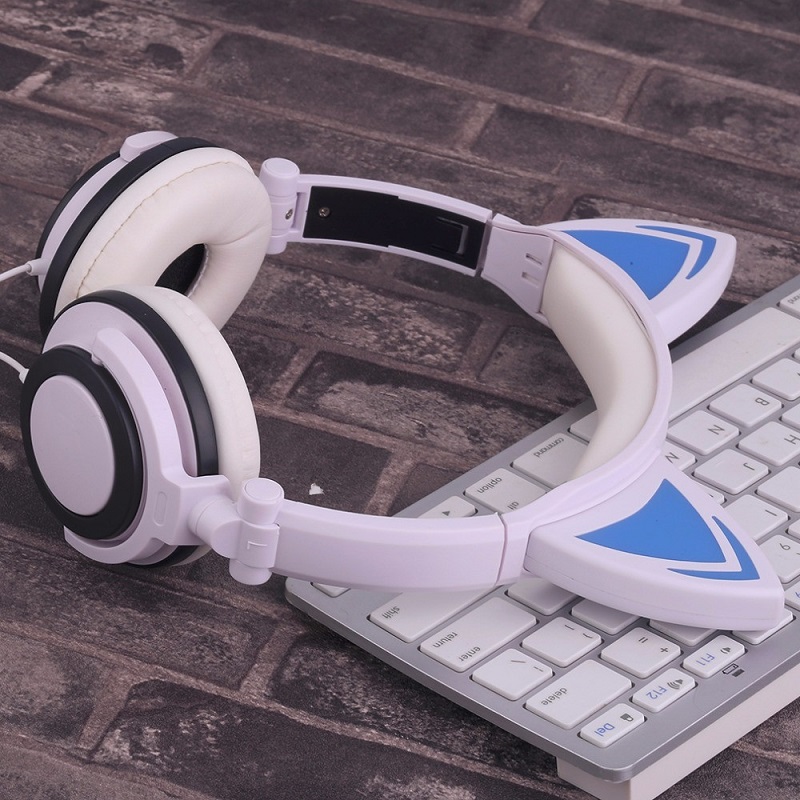
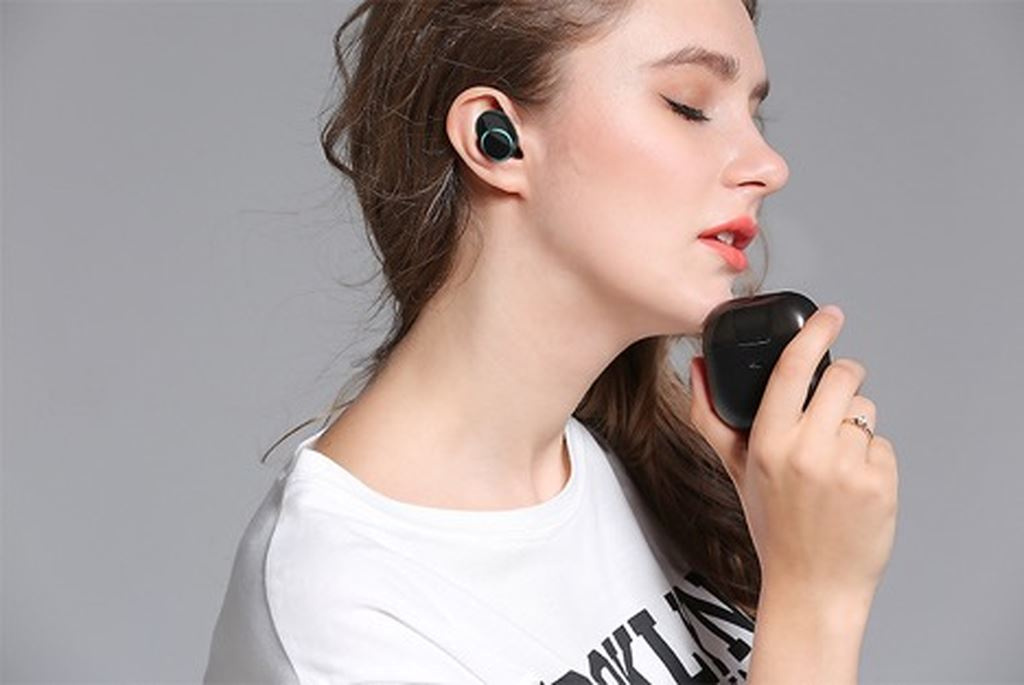

Test the headset in the app you use
Choose it as both the input and output in your call or game. Make a short recording and run a test call. Confirm that mute behaves as expected. If the game sounds thinner only when voice chat starts, compare the available audio modes or try another connection before buying a replacement.
Related Articles
 What is Bluetooth headset? Criteria for choosing effective headset
 How to choose good quality wired headphones
 Top criteria when choosing to buy air conditioner
 Choose to buy a Bluetooth headset
 6 important criteria when choosing tow speakers
 Experience and instructions for using the Plantronics E10 Bluetooth headset
Reader Comments 0
Sign in with email or Google to join the discussion.